How to Reply to a Work Message From a Screenshot — Without Retyping It
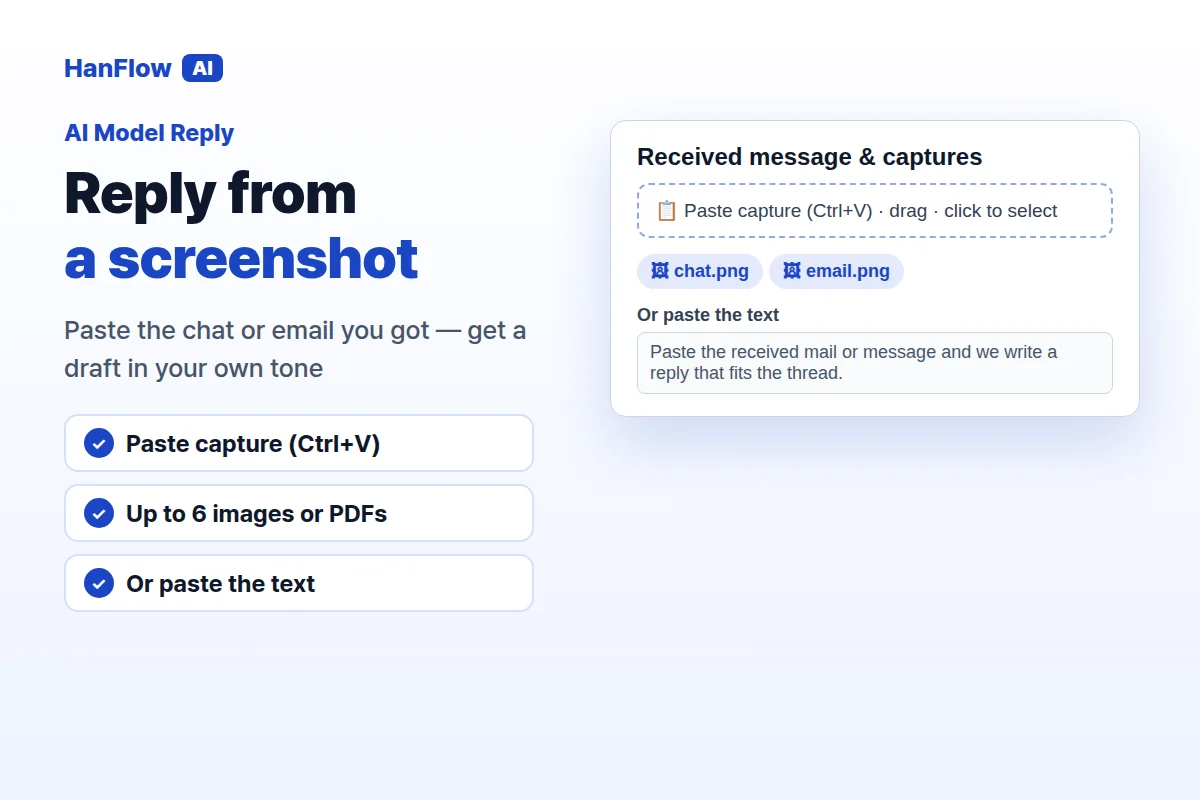
Someone sends you a long email about rescheduling a meeting, adjusting a quote, or confirming a delivery. You know what you want to say. The slow part is typing it in the right tone, at the right length, without forgetting a detail buried in paragraph three. In HanFlow AI's AI Model Reply tool, you paste a screenshot of that message and get a reply draft you can copy straight into your mail or chat app. The tool writes the draft — you send it yourself.
Paste the Screenshot as It Is
Open the tool and use Paste capture (Ctrl+V) · drag · click to select to drop in a screenshot of the message you need to answer. You can attach images and PDFs — up to six files, each up to 5 MB. If you would rather not take a screenshot, paste the text into the text box instead. Crop your capture to the message itself so you are not uploading other people's personal information beyond what the reply requires.
Save Your Tone Once
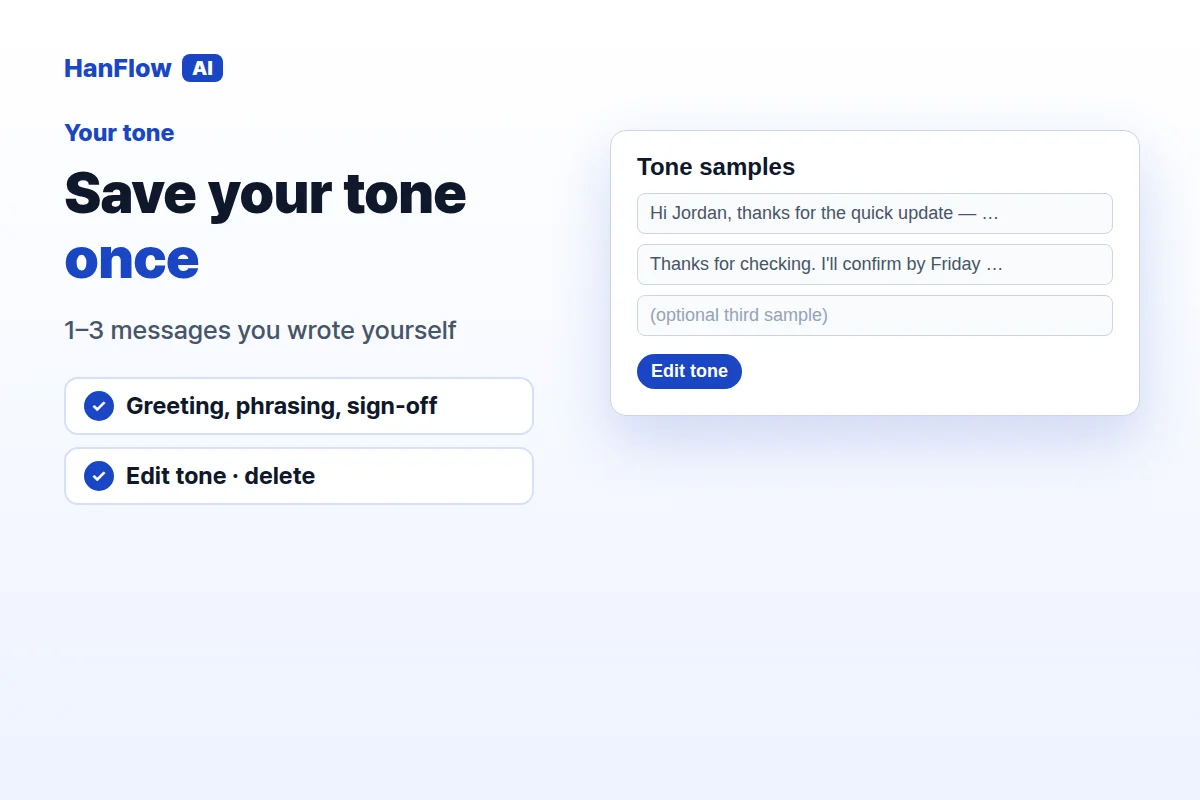
A generic reply sounds generic. Under the tone setting, save one to three messages you actually wrote as a named tone. These samples show the tool how you phrase things — formal or casual, direct or softened. You can Edit tone or delete a saved tone at any time. Pick a saved tone before you generate, and its samples guide the wording of the reply.
Start From a Common Situation
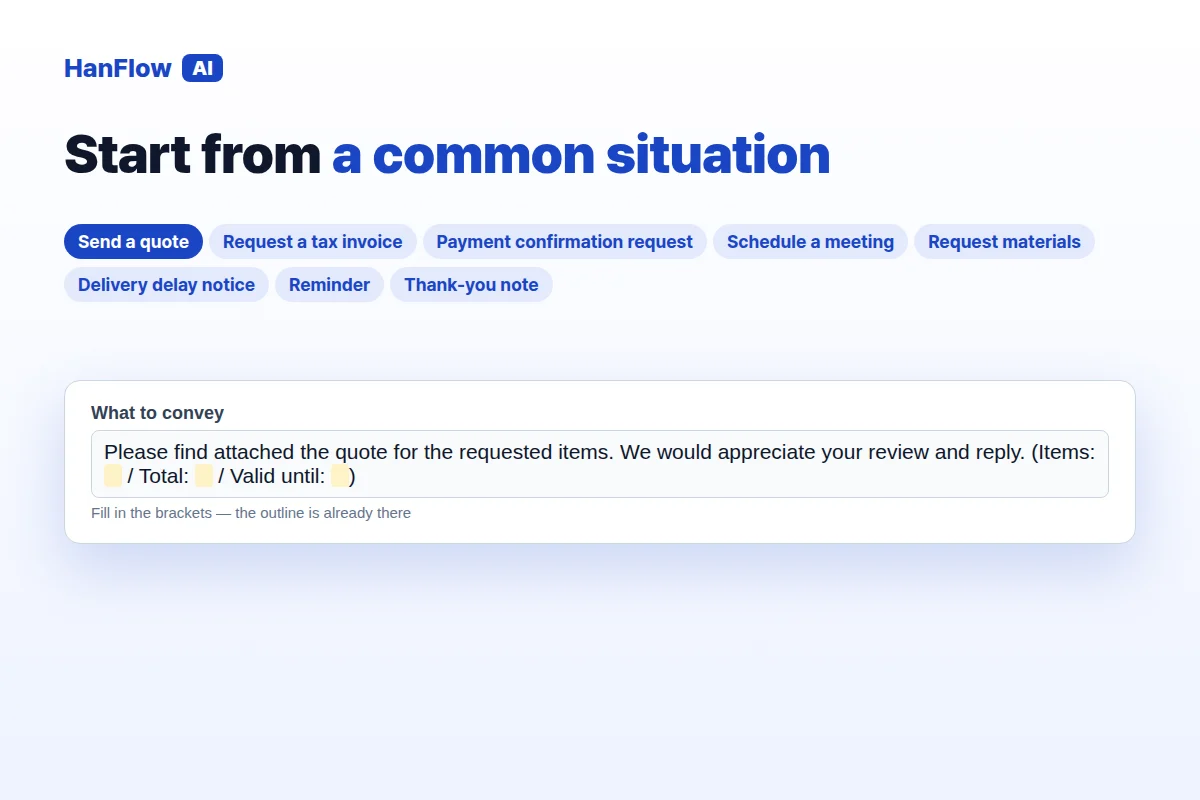
Eight situation buttons cover the replies people write most often: Send a quote, Request a tax invoice, Payment confirmation request, Schedule a meeting, Request materials, Delivery delay notice, Reminder, and Thank-you note. Press one and the What to convey field is filled with a starting outline for that situation — you only add the specifics, such as a date or an amount. If none fits, describe what you need in the What to convey field — or leave it empty and the tool writes a fitting reply to the received message on its own.
Set the Recipient and Length
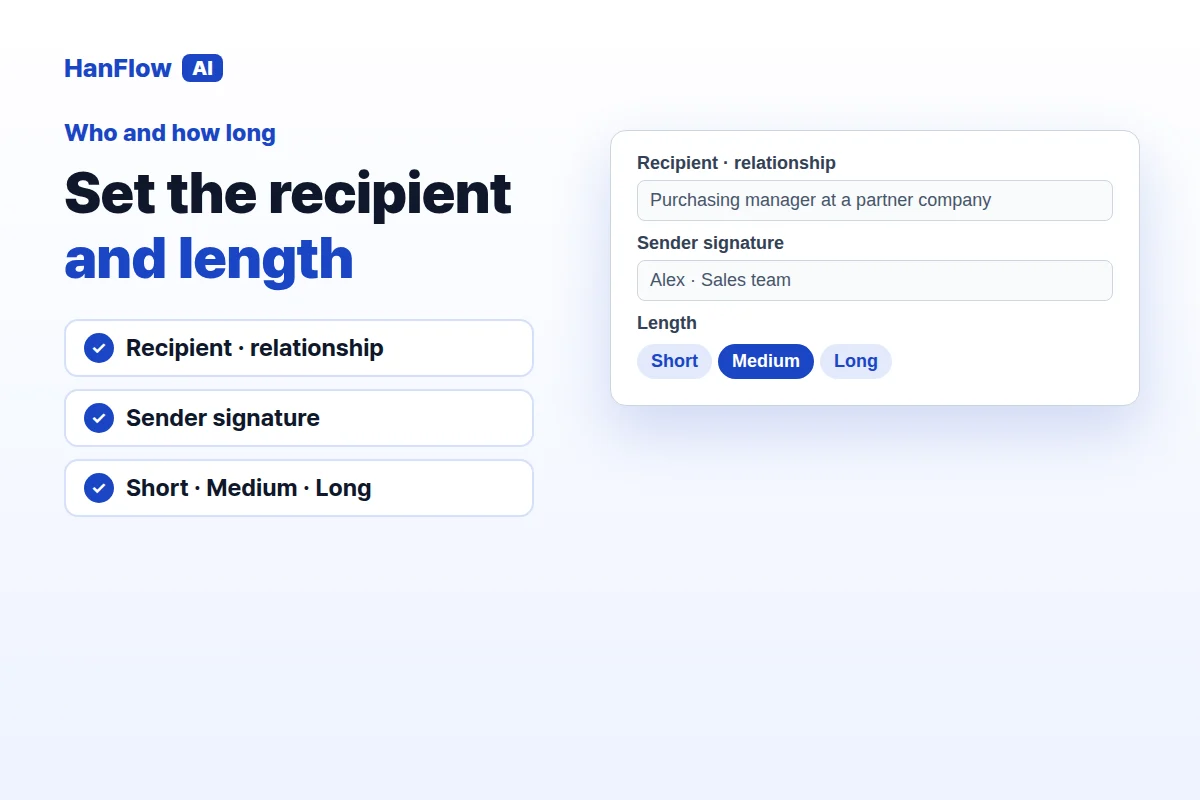
Fill in Recipient · relationship so the draft uses the right level of formality. Add your Sender signature if the reply needs one. Choose a length — Short, Medium, or Long — depending on how much context the situation requires. If the first draft misses the mark, hit Regenerate. When you are satisfied, use the copy button and paste the result into your mail or messenger app.
Check Before You Send
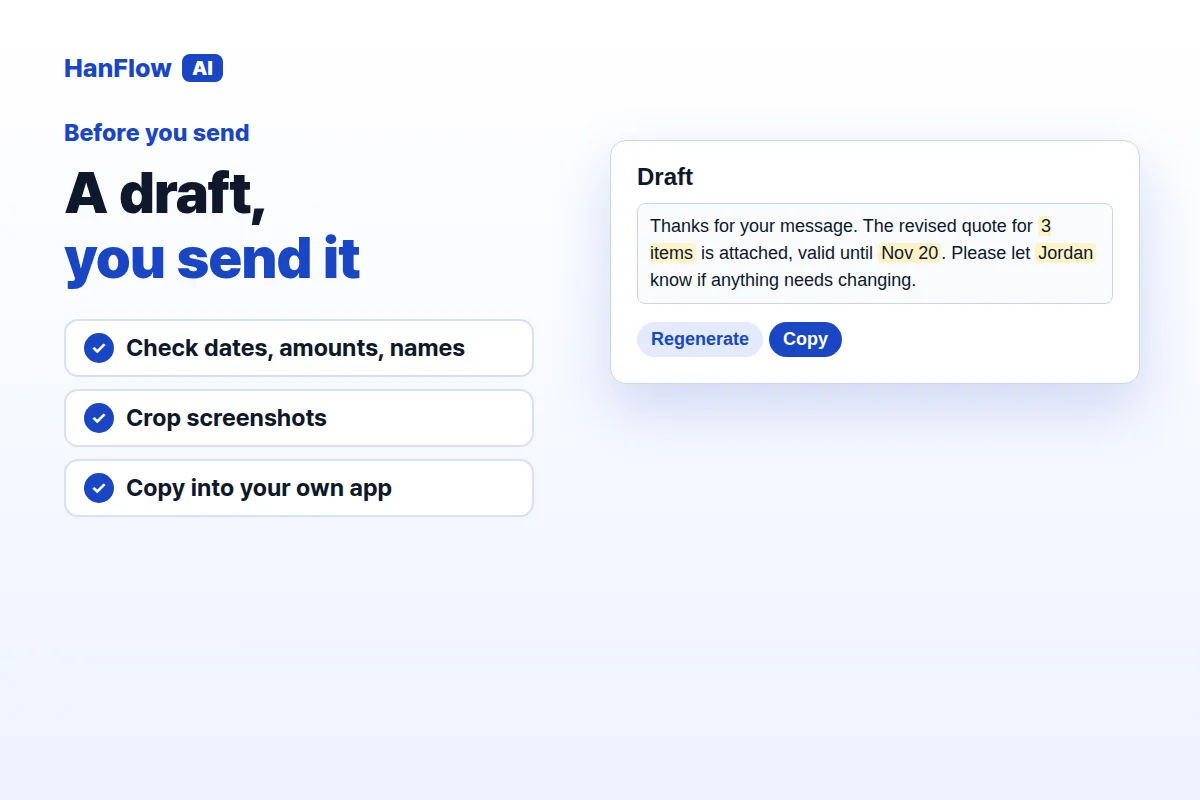
The tool writes a draft. It does not send anything on your behalf — you send it yourself from your own app. Before you hit send, verify every date, amount, and name against the original message. A misread digit in a quote or a wrong meeting date defeats the purpose. Double-check that your screenshots are cropped to only what is needed. Other people's personal information should not be in the image if it is not relevant to the reply.
Frequently asked questions
Q: Do I need to install anything? No. The tool runs in the browser at hanflowai.com. Sign in and start using it — nothing to download.
Q: Can I paste the text instead of a screenshot? Yes. If you can copy the original message, paste it into the text box. The tool works with both screenshots and plain text.
Q: How many samples do I need for my tone? One to three. Each sample should be a message you actually wrote. Use messages that sound the way you normally write to that kind of recipient.
Q: Can I send the AI reply as-is? Check it first. Verify dates, amounts, and names against the original. The draft is a starting point — treat it the way you would treat a message written by a colleague who does not have all the context you do.