How to Fill Your Excel Template With AI — Keep the Layout, Skip the Typing
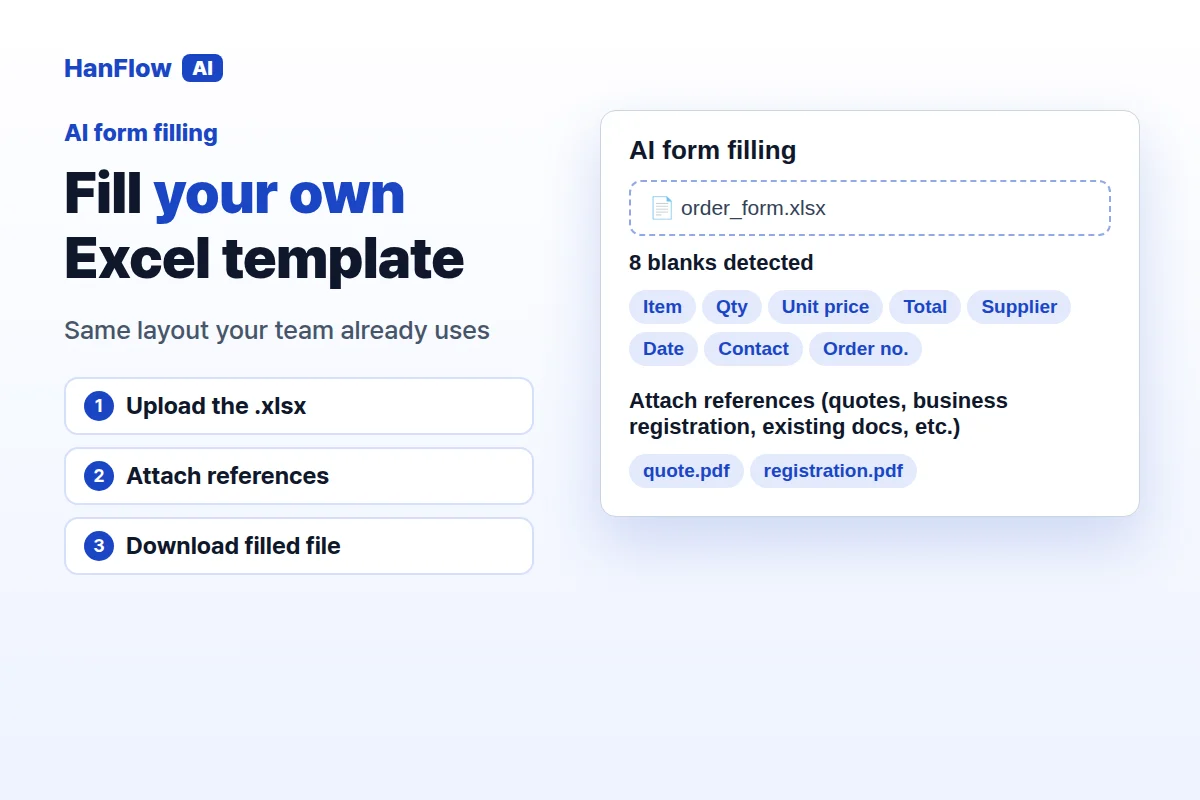
Upload your company's Excel template to an AI form-filling tool, attach the reference documents that hold the data, and download a filled copy — same columns, same borders, same layout your finance team already signs off on. You check the result instead of typing it. Here is the full walkthrough.
Why Your Own Template Matters
Every company settles on a particular order form, price sheet, or expense layout for a reason. Customers recognize that layout on quotes. Finance reconciles against that exact column order on expense sheets. An auditor who has seen the same template fifty times can scan it in seconds. Replace it with a generic export and someone downstream will ask you to redo the file — or worse, question whether the numbers are right. The goal is not a new spreadsheet. It is the same spreadsheet, filled in.
Upload, Detect, Fill, Download
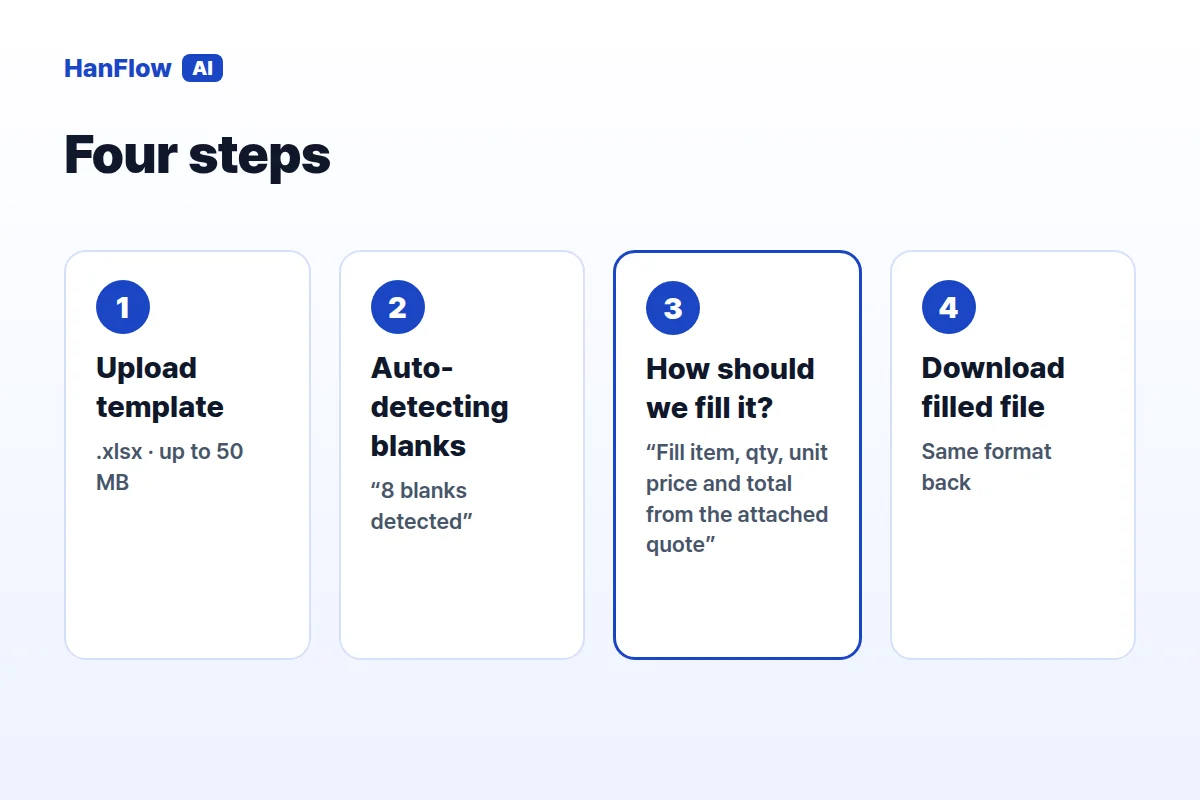
Open AI form filling in HanFlow AI (sign in first). Click or drag your .xlsx file — up to 50 MB.
The tool runs Auto-detecting blanks and returns a summary such as "8 blanks detected" with the label of each empty field it found.
Next, Attach references (quotes, business registration, existing docs, etc.). These are the source documents the AI reads — a supplier quote, a business registration certificate, an item list, anything that contains the data your template needs.
In the "How should we fill it?" box, write a plain-language instruction. For example: Fill item, quantity, unit price and total from the attached quote, and the supplier details from the business registration. Leave it empty and the tool defaults to: fill the blanks of the form based on the attached references.
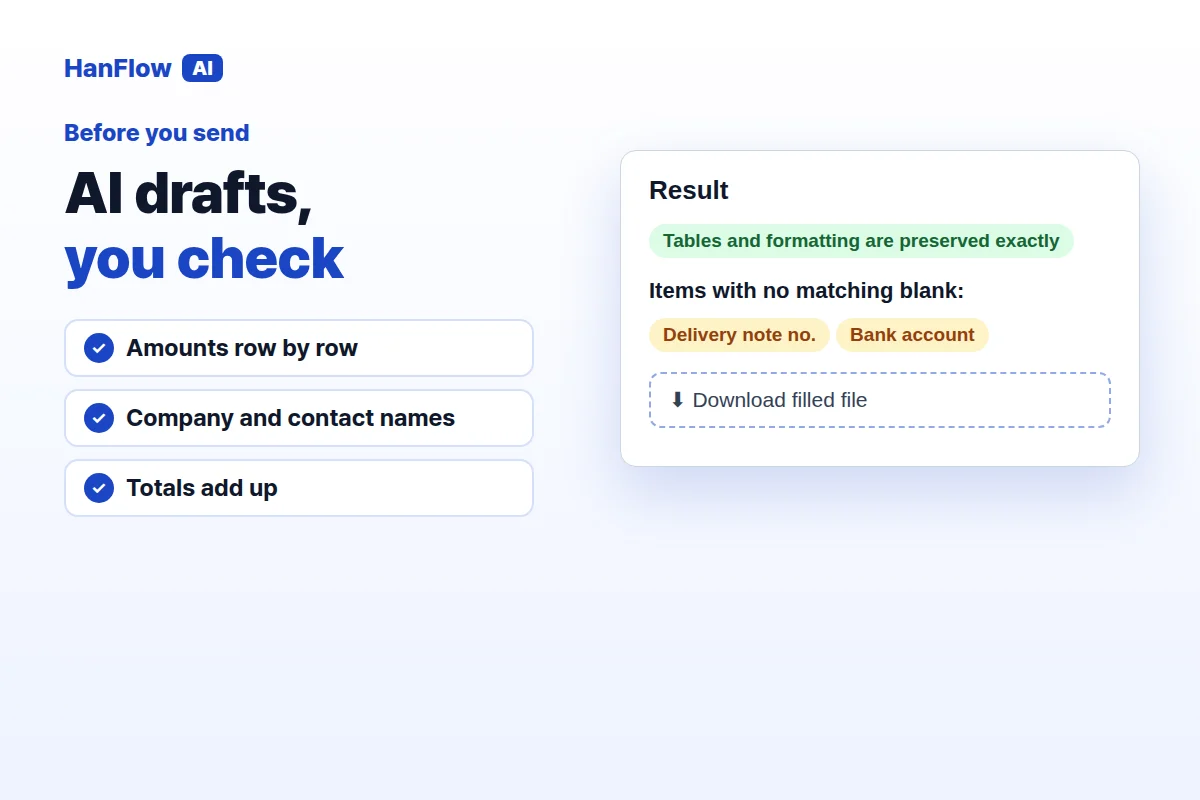
Click fill. When it finishes, click "Download filled file". You get the same .xlsx you uploaded. Tables and formatting are preserved exactly. After downloading, please do a final check in Word, Excel, etc.
What to Check Before Sending
AI drafts the blanks — you check numbers and names in Excel — then send. Go through amounts row by row, confirm the spelling on company and contact names, and make sure totals line up. Pay attention to unit prices that look rounded and quantities that could have been misread from a scanned source. The tool lists anything it could not place under "Items with no matching blank:", so start there for data that may need manual entry. This last step is fast, but it is not optional.
Same Tool for Word, PowerPoint, and PDF
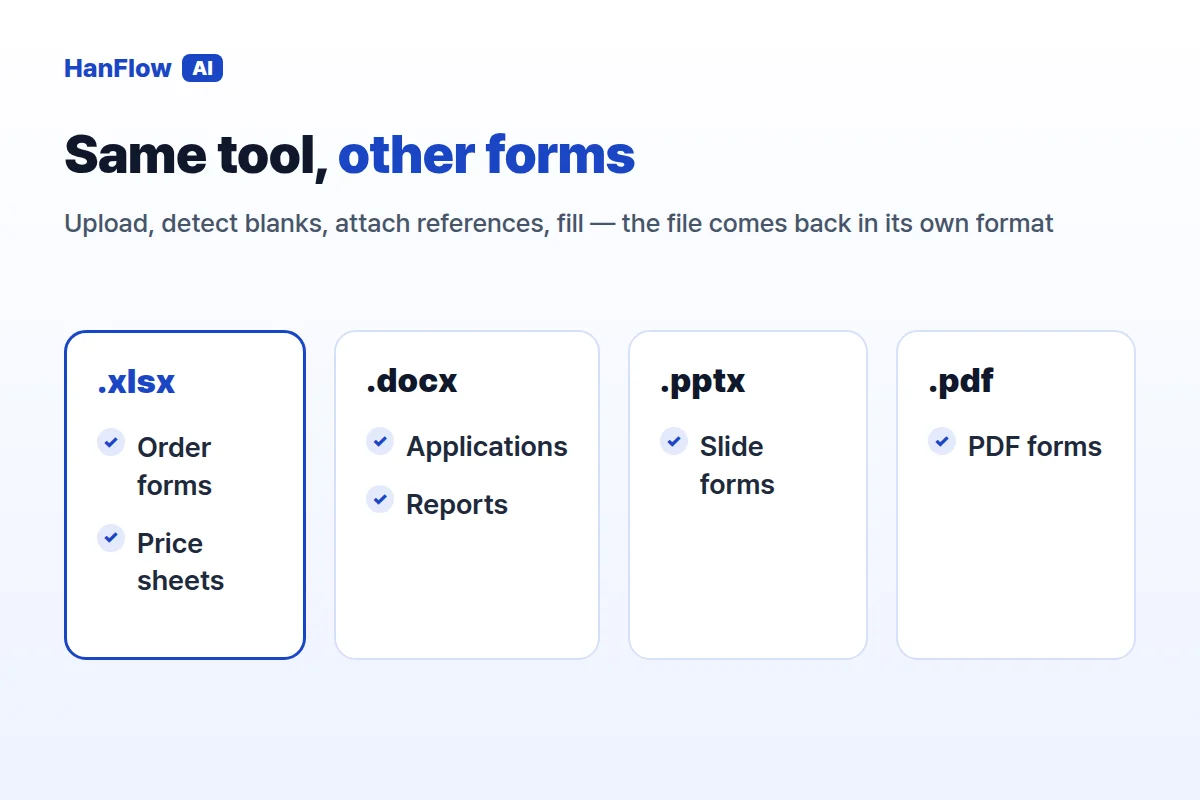
AI form filling is not limited to spreadsheets. The same workflow accepts Word (.docx/.doc), PowerPoint (.pptx/.ppt), and PDF templates — up to 50 MB each. Upload, detect blanks, attach references, fill, download. The output keeps the original format, so a .docx comes back as a .docx and a .pptx comes back as a .pptx.
Frequently asked questions
Q: Does it keep my layout? The filled file comes back in the same format as your uploaded template, and the tool states: Tables and formatting are preserved exactly. Open it in Excel and give it a final check before you send it.
Q: Can it read photos of receipts into a spreadsheet? For receipt scanning — extracting dates, amounts, and merchant names from receipt photos into Excel — see How to Scan Receipts to Excel Without Typing a Single Number.
Q: Is the preview billed? Blank detection (the preview step) is not billed. Filling uses credits. See pricing for details.