How to Generate PowerPoint from a Word Document Without Losing Your Audience
It is 10 p.m. the night before your presentation. The report is done — forty pages, every argument backed, every number cited. Slide one is blank. You have been here before. The temptation is to copy paragraphs straight into PowerPoint and call it a night. Do not do that.
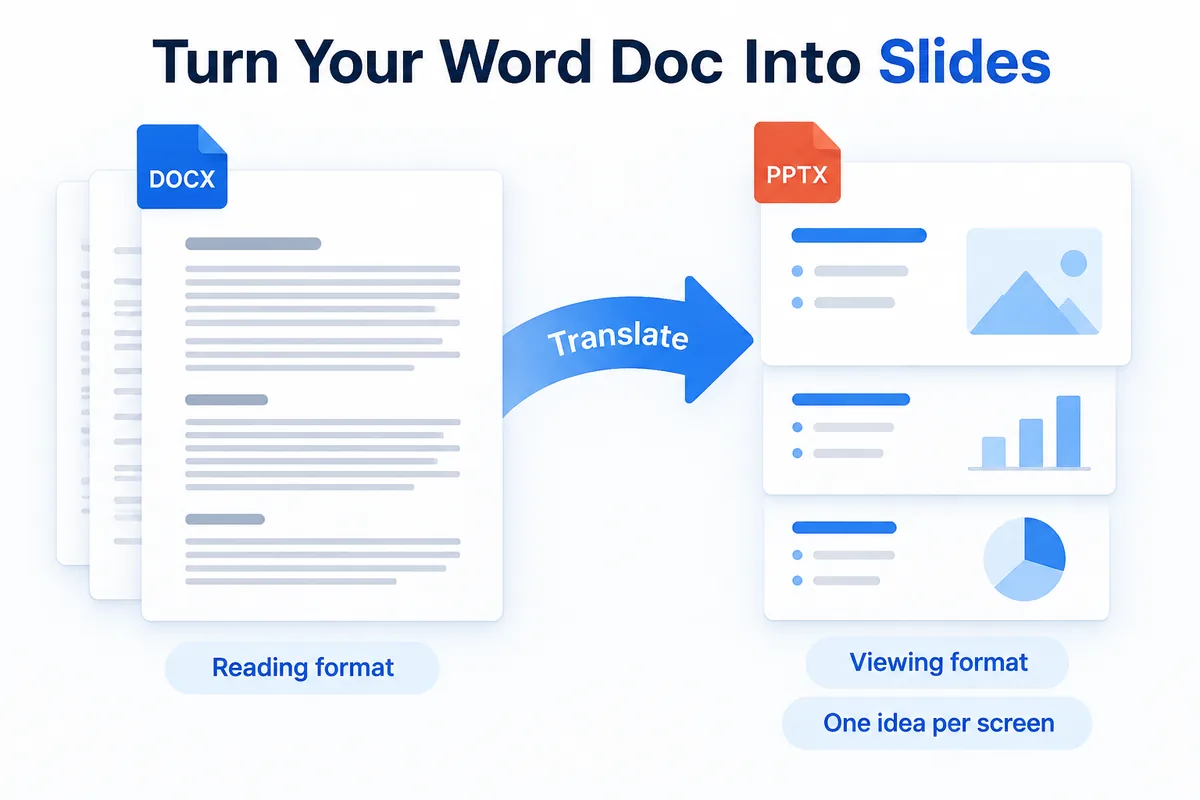
A document is built to be read. A slide is built to be glanced at. When you generate PowerPoint from a Word document by dumping text into slide frames, you get a wall of 11-point type that your audience will squint at, then ignore. The structure is wrong too: a report follows a logical thread across paragraphs, while a deck delivers one idea per screen. Fonts break. Margins collapse. Bullets multiply until every slide looks like a grocery list. The content is all there, but the communication is gone.
The fix is not to start from scratch. Your document already holds the substance. The fix is to translate it — from a reading format to a viewing format — with a clear plan.
Decide Three Things Before You Touch a Single Slide
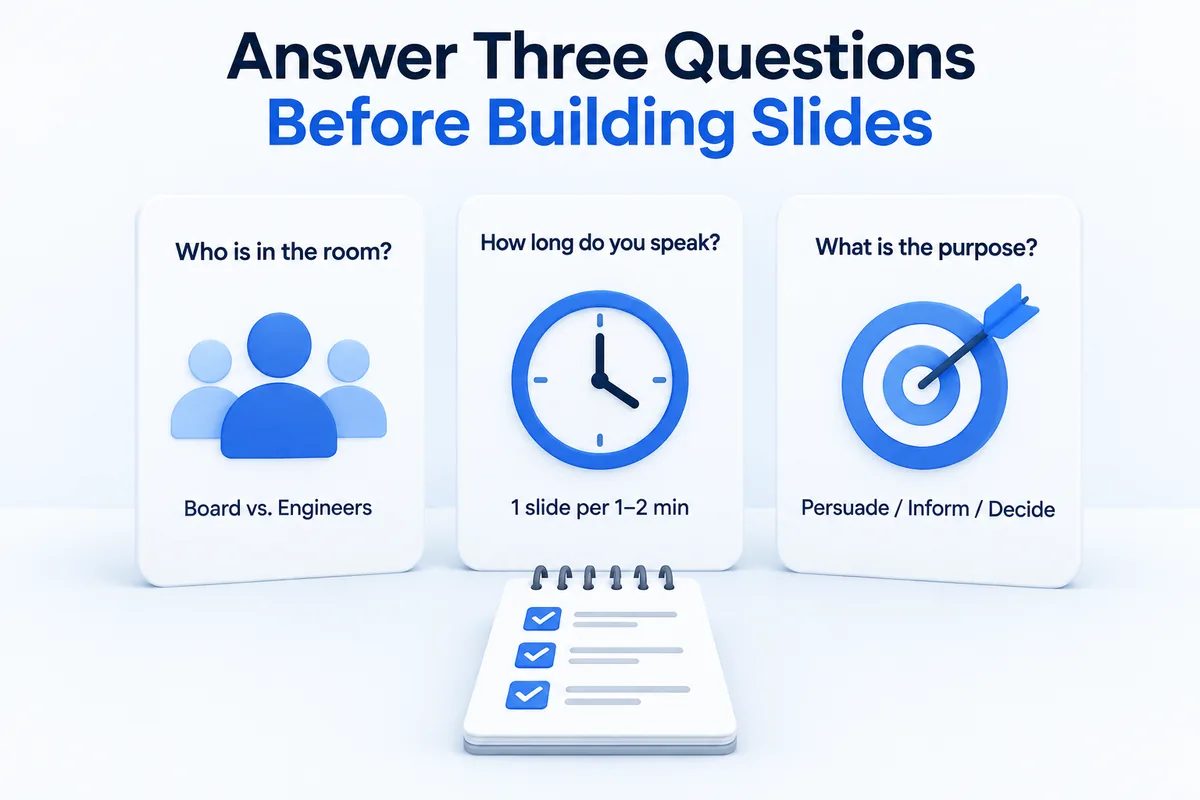
Before any tool can help you, you need answers only you have.
Who is in the room? A board of directors and a team of engineers need different levels of detail. The same quarterly report becomes a five-slide summary for one group and a fifteen-slide walkthrough for the other.
How long do you speak? A rough rule: one slide per one to two minutes of talk time. A twenty-minute slot means ten to fifteen slides, not thirty.
What is the purpose? Are you persuading, informing, or asking for a decision? This shapes whether your deck leads with conclusions or builds toward them.
Write these three answers down. They are the brief your slides must follow, no matter how you build them.
Generate PowerPoint from Your Word Document by Attaching It as a Reference
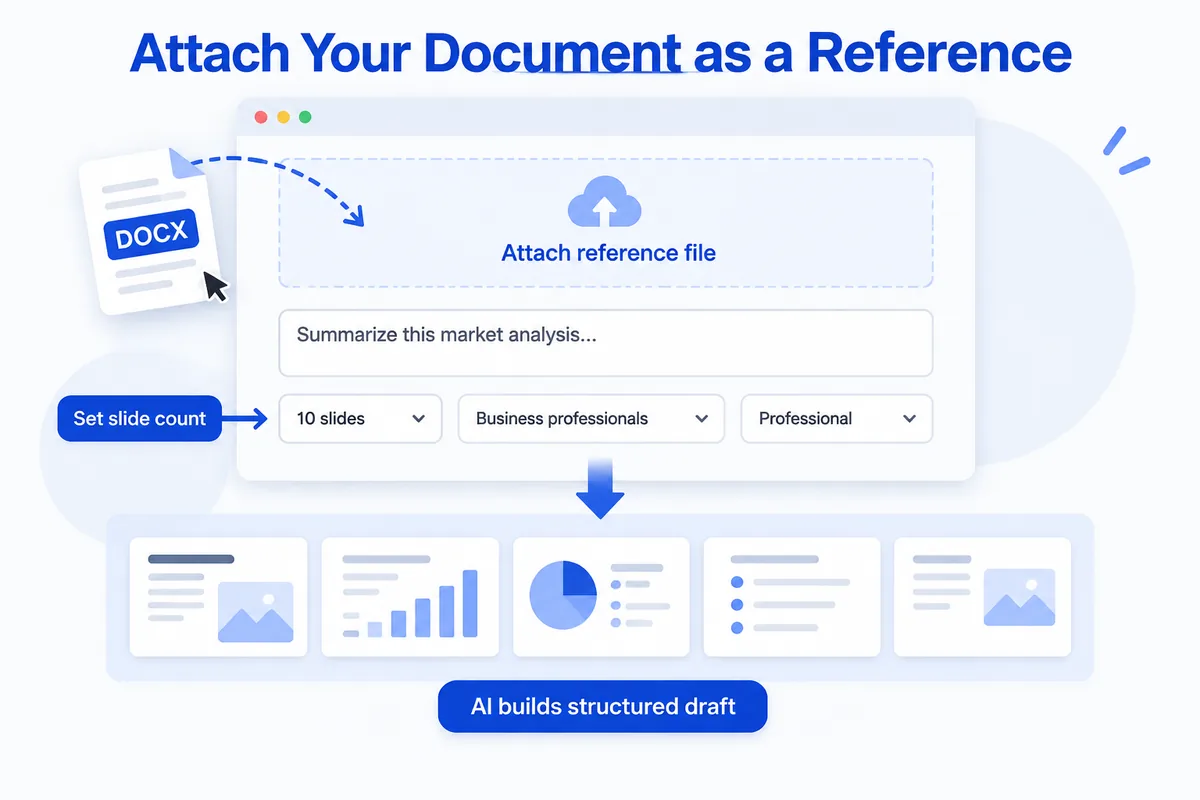
Here is where the document you already wrote becomes useful. Instead of manually carving it into slides, you can hand it to an AI tool as source material.
In a tool like HanFlow AI, you attach your reference file — the Word document, the PDF, the report — and the content is reflected in what the AI drafts. You state your goal in a single line: "Create a presentation summarizing this market analysis for a non-technical leadership team." Then you choose the practical details: slide count (anywhere from three to thirty), audience type, purpose, and tone. The AI reads your document and builds a structured draft, pulling key points rather than copying paragraphs.
This is not magic. It is extraction. The AI identifies headings, data, and conclusions in your file and redistributes them across slides in a format that works on screen. You still need to check every slide — but you are editing a draft instead of staring at a blank one.
Four Things to Fix in Every AI-Generated Deck
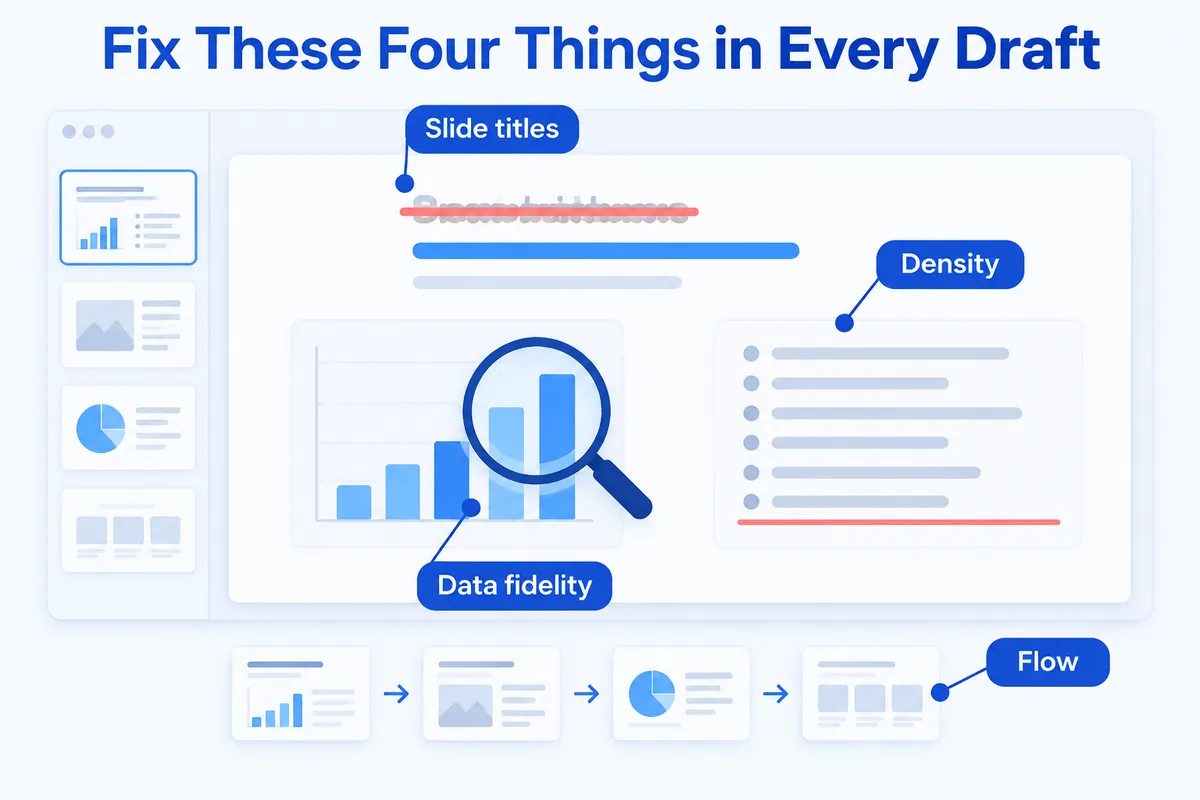
No first draft ships as-is. Here is where to focus your revision time.
Slide titles. A good title is a sentence, not a label. "Revenue grew 14% in Q3" tells the audience what matters. "Q3 Revenue" does not. Check every title and rewrite the ones that merely name a topic.
Data fidelity. If your document contained specific numbers, verify they survived the translation. AI can paraphrase a statistic into something subtly different. Compare the draft against your source for every figure, date, and proper noun.
Density. Count the bullet points on each slide. More than four or five and you are back to a reading document dressed up as a presentation. Split heavy slides into two, or move supporting detail to speaker notes.
Flow. Read the deck from first slide to last and ask: does each slide lead naturally to the next? A document can afford tangents; a presentation cannot. Reorder or cut anything that breaks the narrative thread.
Export as PPTX and Keep Editing
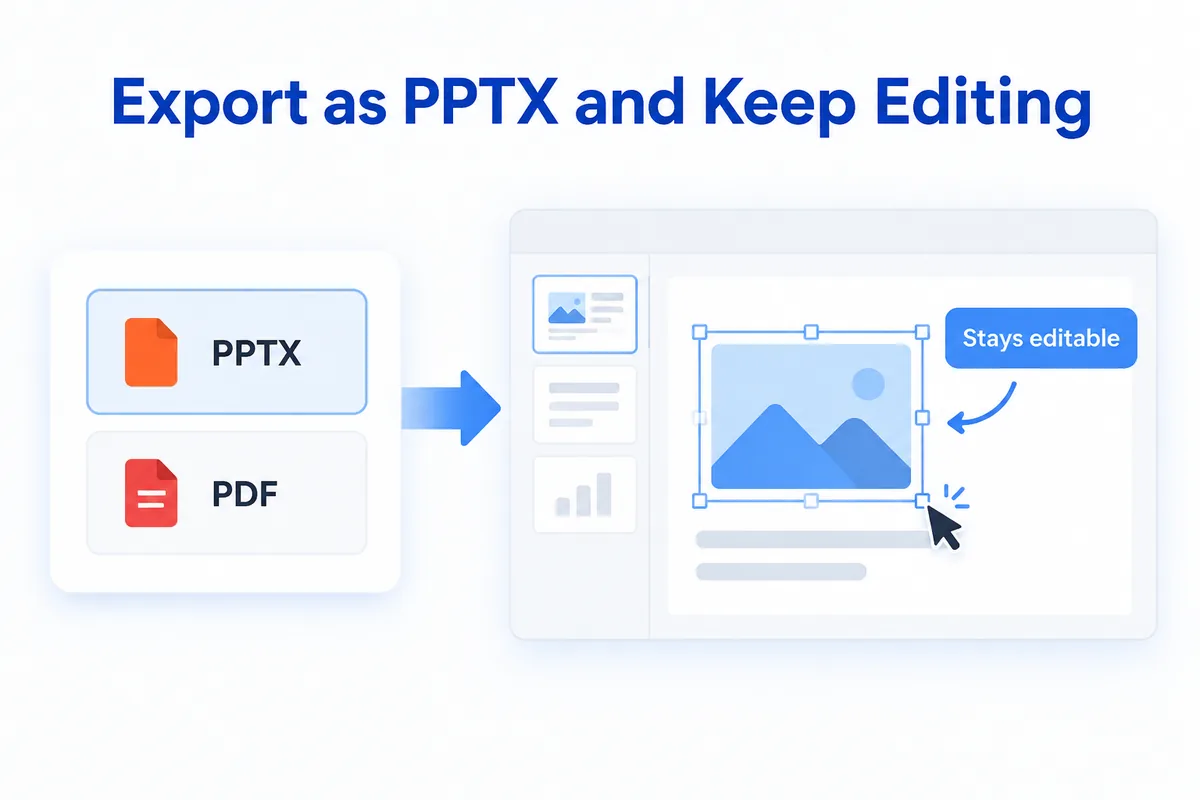
Once your draft is revised, download it as a PPTX file. In HanFlow AI, you can export as PPTX, PDF, or Excel — for a slide deck you will present live, PPTX is the right choice because it stays editable. Open it in PowerPoint or any compatible app, adjust brand colors, swap in approved images, and rehearse.
The point of this entire workflow is not to remove you from the process. It is to remove the blankest, most tedious part — the initial conversion — so you spend your time on the work that actually needs a human: shaping the story, checking the facts, and deciding what your audience needs to see.
Your report already did the thinking. Let it do the heavy lifting for your slides, too.