How to Scan Receipts to Excel Without Typing a Single Number
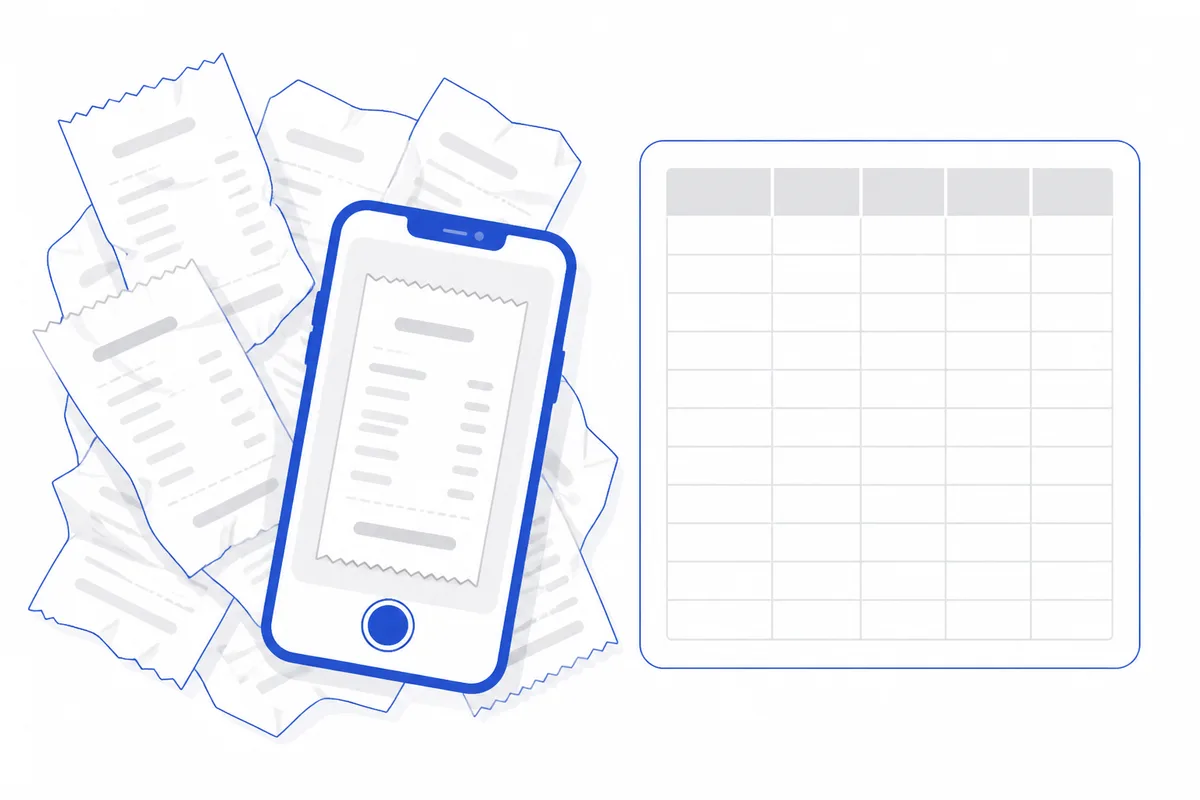
It is the last day of the month. You have a shoebox — maybe a desk drawer — full of receipts. Coffee runs, cab fares, office supplies, a client lunch you almost forgot about. Somewhere on your computer is a spreadsheet waiting for all of it: dates, amounts, merchant names, card numbers. You start typing. Twenty minutes in, you transpose two digits on a taxi fare. You will not catch it until accounting flags it next week.
Manual entry is not just slow — it is unreliable. Fingers swap digits, skip rows, and misread faded thermal print. The more receipts you handle, the more errors compound. A single transposed amount can cascade into a mismatch that takes longer to trace than the original typing took. There is a better sequence: clean capture, consistent naming, logical sorting, and one consolidated file.
Photograph Receipts So Every Field Reads Clean
The quality of your final spreadsheet starts with the quality of your source image. A blurry, angled, or half-cropped photo means missing data later — and missing data means you dig through your wallet or email again.
Lay the receipt flat on a contrasting surface. Capture the entire slip in one frame, corner to corner. Make sure the text is sharp enough to read at full zoom on screen. Thermal paper fades fast, so photograph receipts the day you get them. If you received a PDF receipt by email, skip the camera entirely and use the file as-is — it is already cleaner than any photo you will take.

What matters in the image? Five fields: date, time, merchant name, amount, and the card number (usually the last four digits). These are the columns your spreadsheet needs. Every other detail — itemized line items, loyalty points, store address — is noise for the purpose of expense filing. If those five fields are legible, the receipt is ready.
Name Every File the Same Way
Your phone names photos IMG_4072.jpg. Your scanner calls them Scan_20260928.pdf. Neither tells you what the receipt is for.
Pick one naming pattern and apply it everywhere. A useful format includes the region, amount, time, and date — something like Seoul_45000_1423_20260925. When every file follows the same rule, you can sort a folder alphabetically and immediately spot duplicates or gaps. Finding a specific expense becomes a file search, not a scroll through a hundred thumbnails.
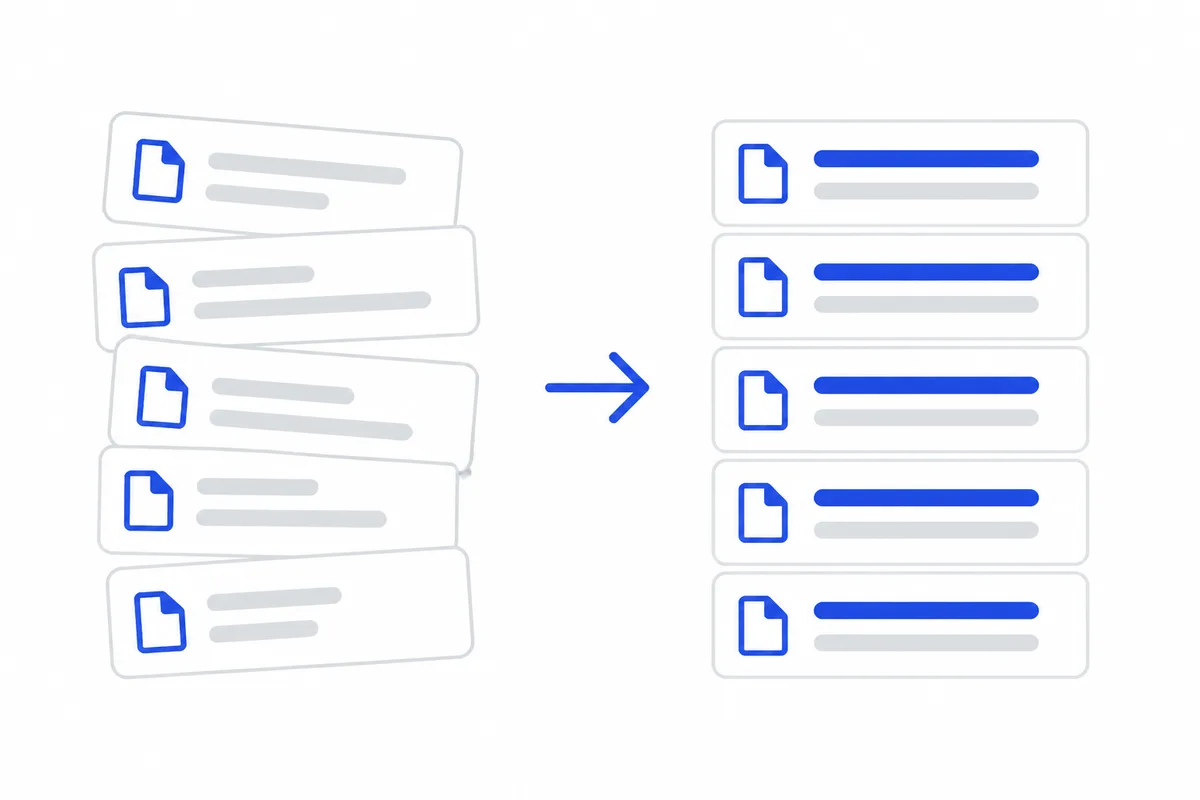
Renaming by hand works for five receipts. For thirty or forty, it is a chore that invites the same mistakes you were trying to avoid.
Sort by Card, Not by Date
Most people dump all receipts into one folder sorted by date. That works until you need to reconcile expenses against a credit card statement.
Card statements are grouped by card. If your receipts are grouped by date, you end up scanning the entire list for every line on every statement. Flip the logic: create one folder per card, identified by the last four digits. Drop each receipt into its matching folder. Reconciliation becomes a matter of comparing two short lists — the folder and the statement — side by side.
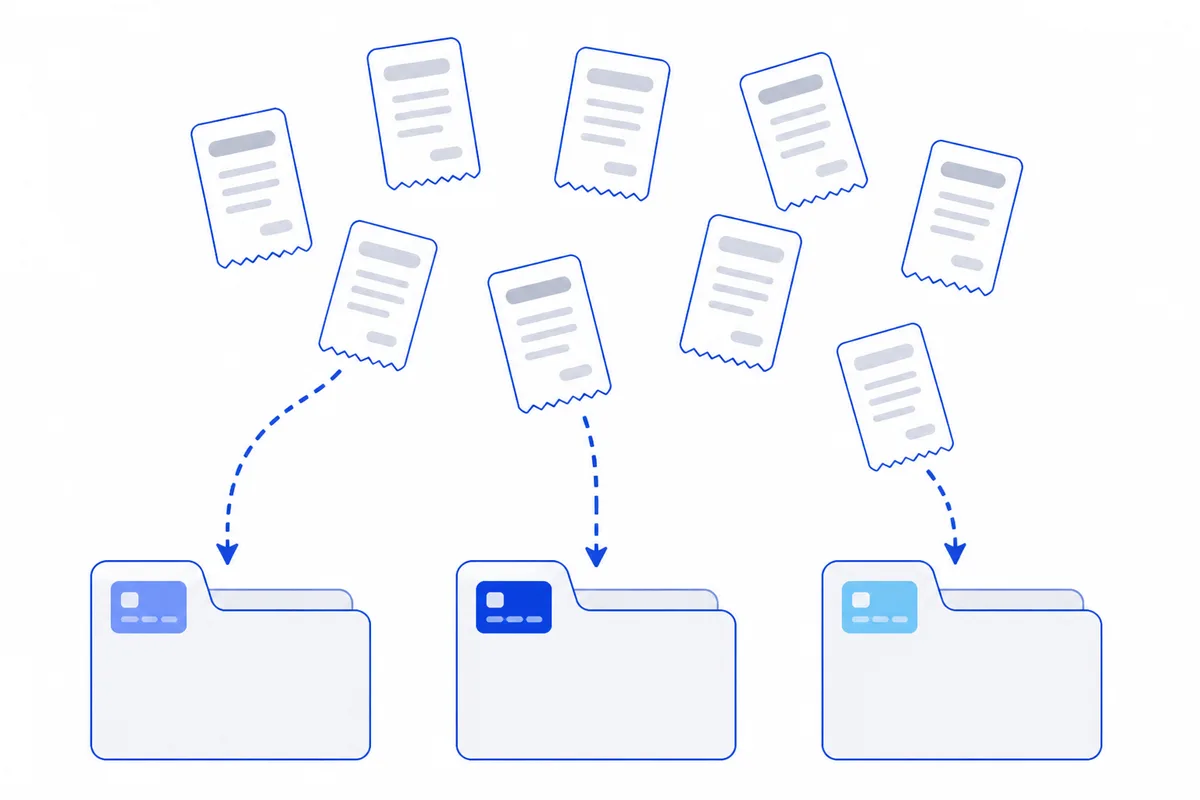
This also simplifies shared cards. If two team members use the same corporate card, their receipts land in the same folder, and the statement match covers both.
Build One Ledger With Per-Card Subtotals
Folders keep files organized. A ledger keeps numbers organized. The end product of your receipt workflow should be a single Excel file where every receipt is one row — date, time, region, merchant, amount, card — with a subtotal at the bottom of each card's section and a grand total at the bottom of the sheet.

This structure does two things. It gives you a one-page view of all spending for the period, ready for anyone who asks "how much did we spend this month?" It also makes audits painless. An auditor can pick any row, find the matching receipt file by name, and verify the amount without asking you a question.
Scan Receipts to Excel in One Upload
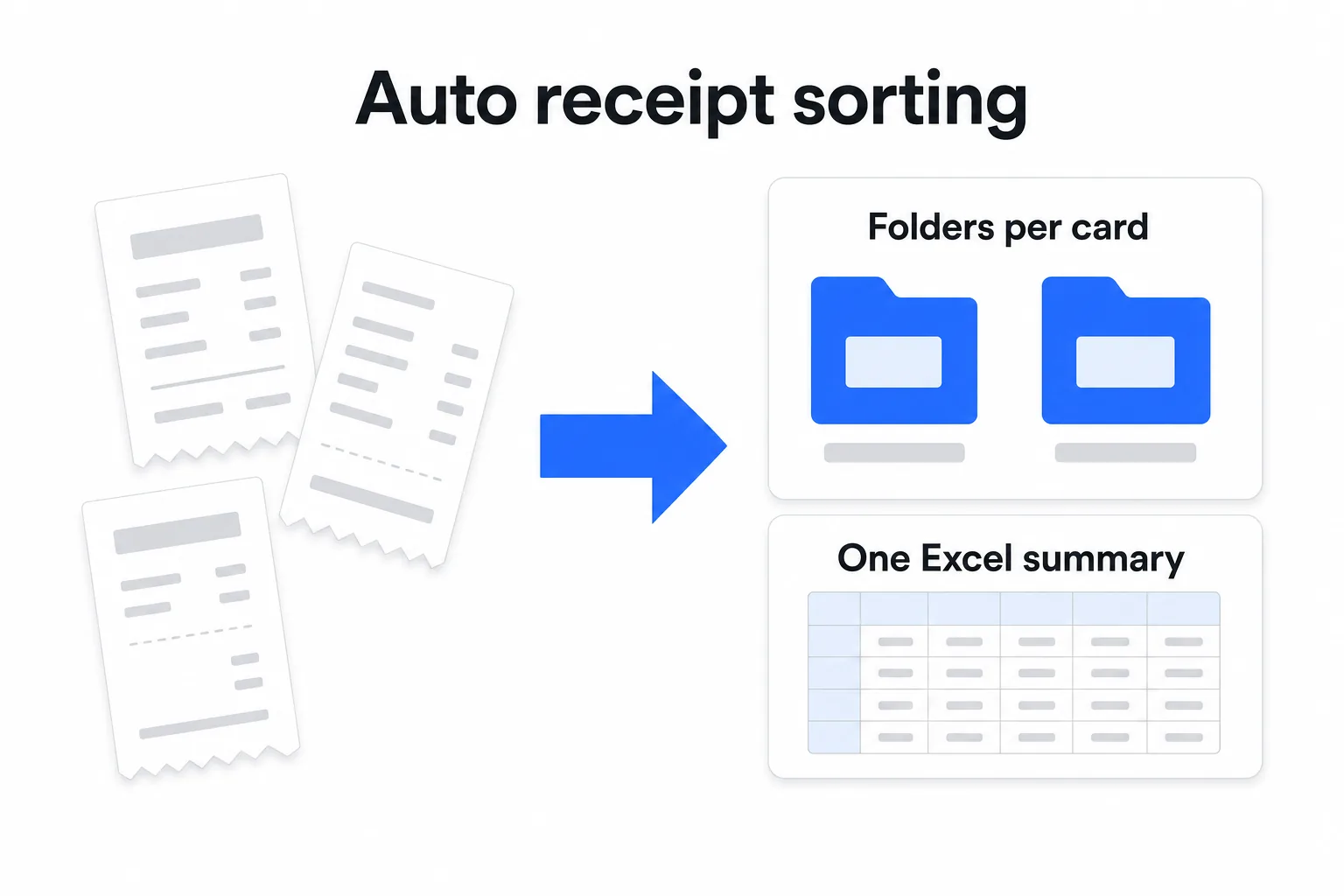
Every step above — capture, rename, sort, tabulate — can be done by hand. It also adds up to a long afternoon when you have forty or fifty receipts.
In a tool like HanFlow AI, you upload up to fifty receipt photos or PDFs at once. The tool reads each image, extracts the date, time, region, merchant, amount, and card number, then renames every file automatically using a consistent pattern (region_amount_time_date). It packages the results into a zip with one folder per card — sorted by the last four digits — and includes a consolidated Excel ledger with per-card subtotals. The whole process runs in the browser. Nothing to install.
This does not mean you skip the last step. Before you submit any expense report, compare the output against your original receipts. Check that amounts match, dates are correct, and no receipt was misread or missed. Automated extraction is fast, but a human eye on the final numbers is what keeps your report clean.
Frequently asked questions
Q: Do I need to crop or edit the receipt photo before uploading? No. As long as the full receipt is visible, the text is legible, and the image is not blurry, the photo works as-is. Lay it flat, keep it in focus, and capture corner to corner.
Q: What if a receipt is too faded to read? If the thermal print has faded beyond legibility — for your eyes or for any scanner — you need a digital copy. Check your email for an electronic receipt, or request a duplicate from the merchant. No tool can extract data that is not visible in the source.
Q: Can I combine results from multiple batches into one ledger? Yes. If you process receipts in more than one batch, you will have one ledger per batch. Copy the rows into a single sheet and recalculate the subtotals. The consistent column structure makes merging straightforward.