How to Edit a Document with AI Without Losing the Formatting
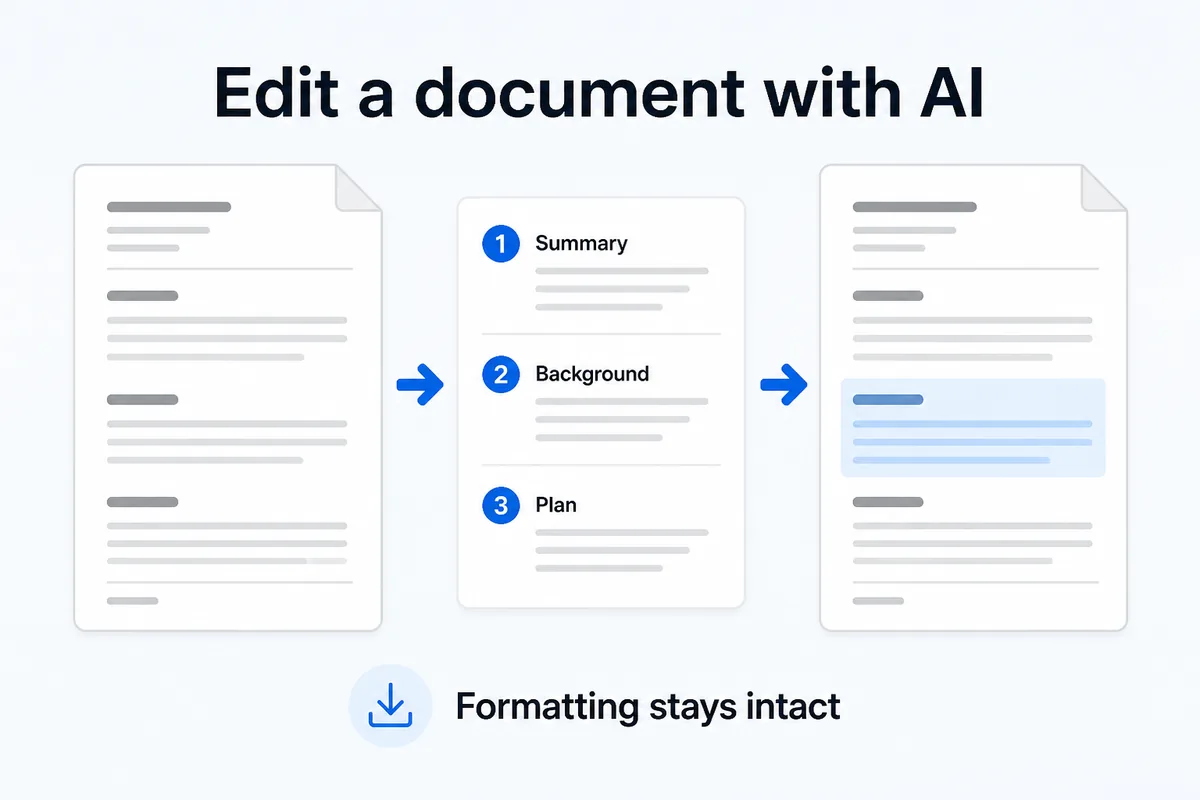
You have a finished report. One chapter needs new numbers, another needs a table, and the conclusion could be sharper. You can edit a document with AI without touching the parts that already work: attach the file, let it split into sections, revise one section at a time, approve the results, and download.
Why whole-document rewrites break formatting
Paste an entire Word file into a chatbot and you get back raw text. Headings collapse. Tables vanish. Page breaks disappear.
The problem is scope. When the AI processes the whole document at once, it has no reason to preserve the structure of sections you never asked it to change.
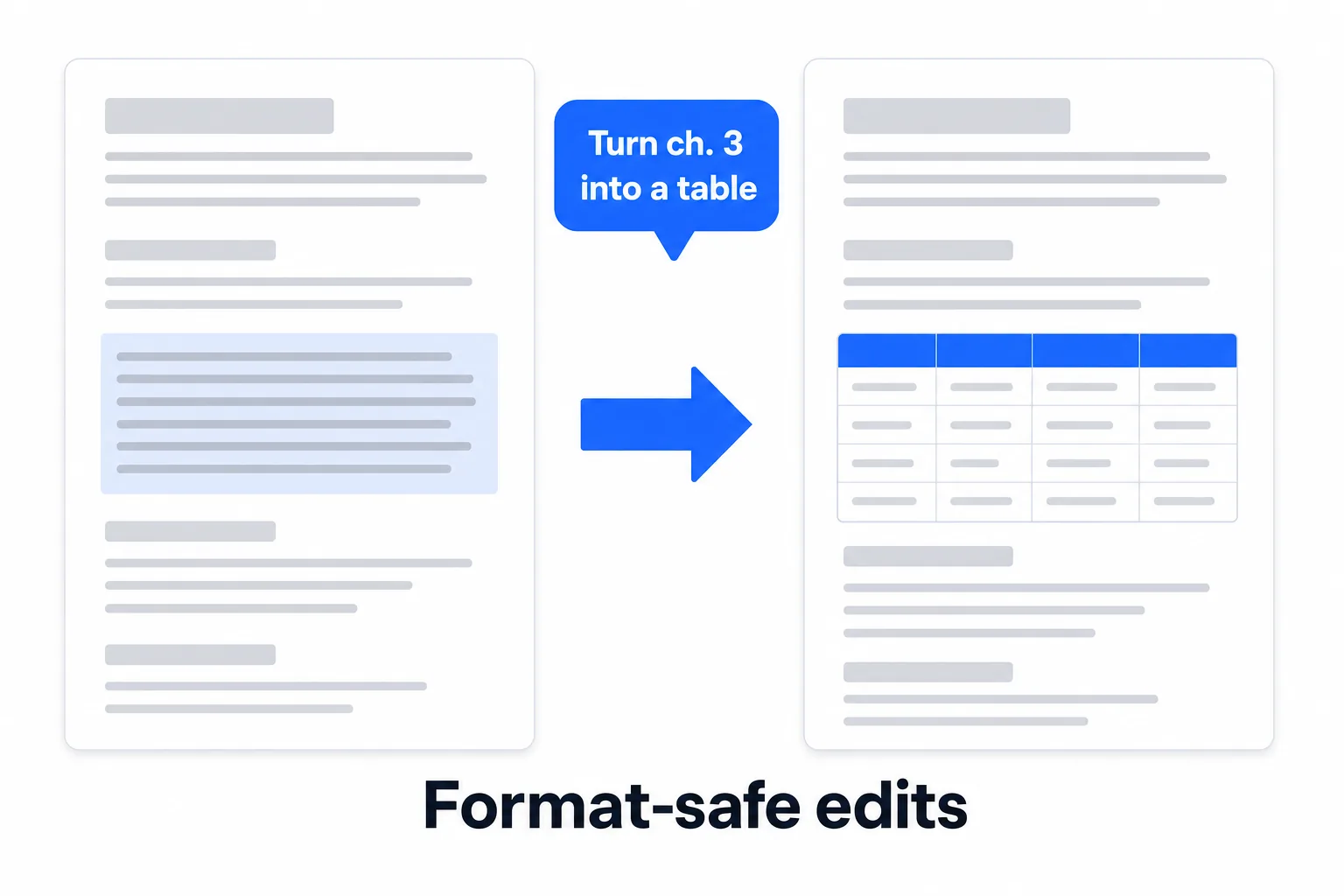
Section-level editing avoids this. Only the section you point at gets rewritten. Everything else stays exactly where it was — headings, tables, images, formatting and all.
Attach the file you already have
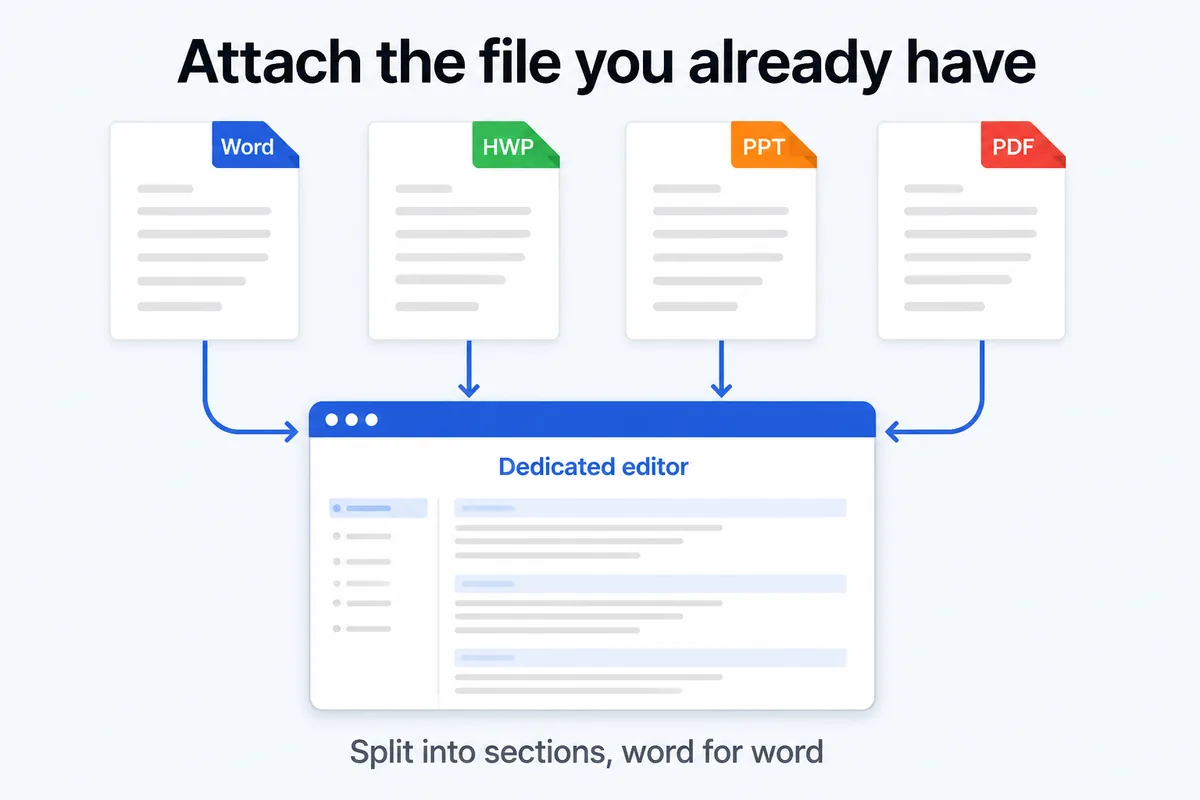
Drag in a Word, HWP, PPT, or PDF document. A dedicated editor opens in a new window and splits the file into sections, preserving the original content verbatim. The splitting takes tens of seconds, depending on length.
You will see a section list showing every part of your document as a separate row. Nothing has been changed yet — the editor simply lays the file out so you can work on one piece at a time.
Rewrite one section at a time
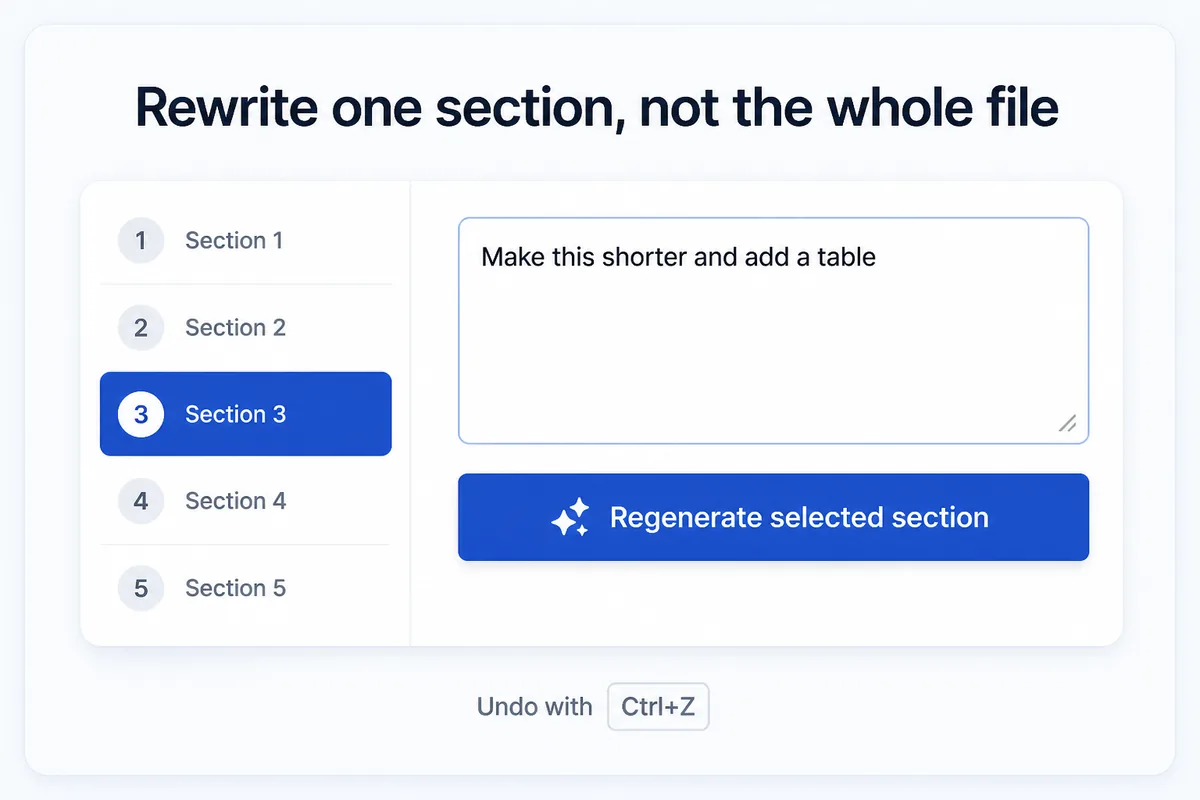
Pick a section from the list. Type what you want — "add a table," "add an image spot," "make the numbers concrete" — and click Regenerate selected section. The document switches to the new version while the approval states of every other section stay untouched.
Changed your mind? Press Ctrl+Z to go back to the previous version. You can also insert one image per section; image search and AI-generated image results are added automatically.
This is the core of format-safe AI editing: the blast radius of any single instruction is one section, never the whole file.
Approve, then merge
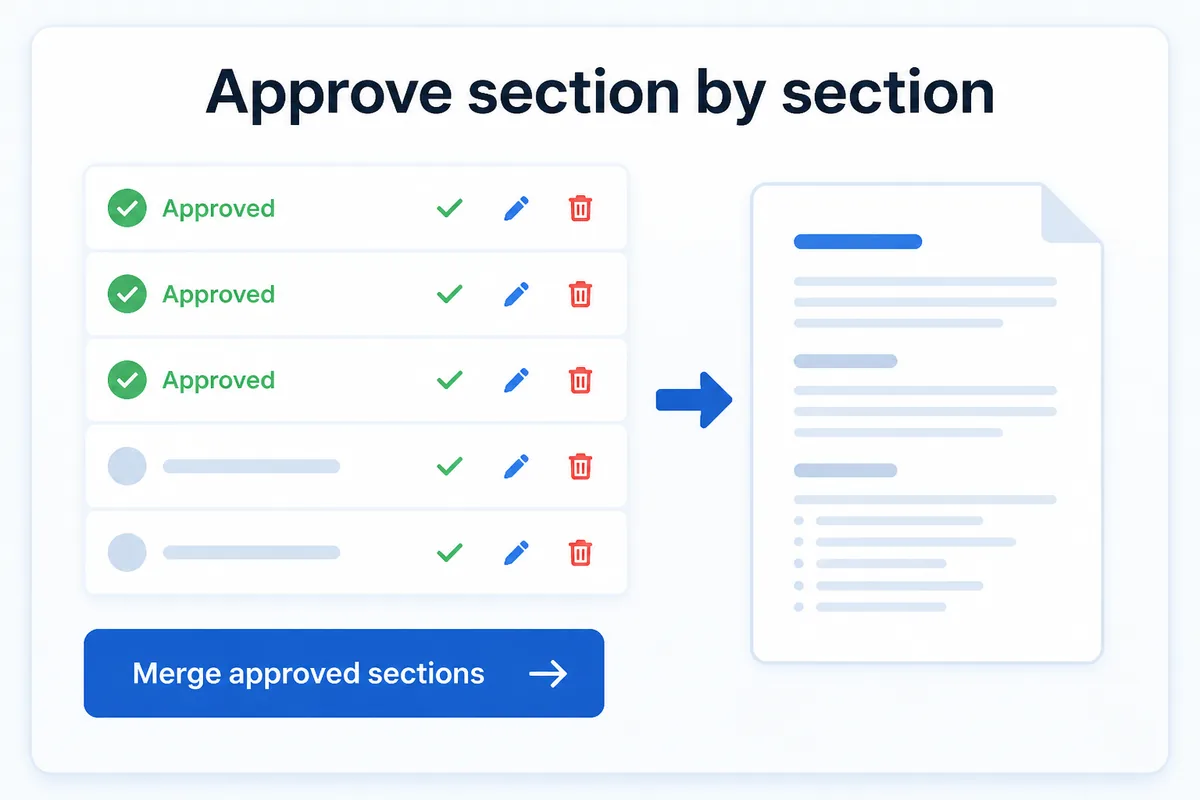
Each section row has three controls. ✔ Approve locks in a section you are happy with. ✏ Rename lets you retitle it. 🗑 Delete removes it from the document entirely. All three apply immediately.
Once you have approved the sections you want, click Merge approved sections. The editor builds a final document from only the approved rows — nothing unapproved slips in.
Download as Word, HWP or PDF
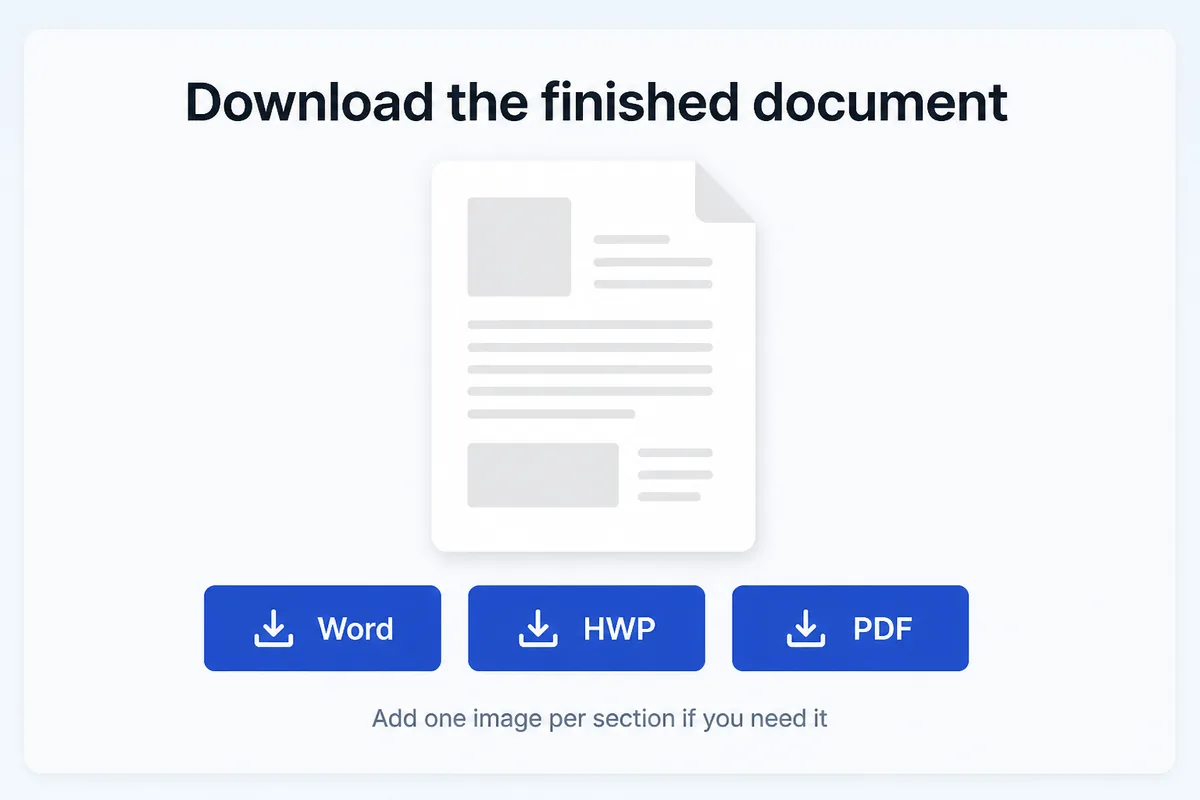
The toolbar offers three download formats: Word, HWP (Hangul), and PDF. Pick the one your recipient expects.
Before you send, read through the finished file. AI-generated revisions can introduce subtle errors — a wrong date, a misread acronym — that a quick review will catch. If you are starting a document from scratch rather than editing one, how to start writing a report walks through the drafting side of HanFlow AI.
Frequently asked questions
Will my tables and headings survive?
That is what the editor is built for: it splits the document into sections with the original formatting preserved, and regenerating a section changes only that section. Still, glance over any table you asked it to rewrite before you send the file.
Can I edit a PDF this way?
You can. Attach a PDF and it opens in the same dedicated editor, split into sections just like a Word or PPT file. After editing, download the result as Word, HWP, or PDF.
What if I don't like the rewrite?
Press Ctrl+Z to revert to the previous version of that section. You can regenerate as many times as you need, and approval states on other sections are not affected.
Do I need to install anything?
No. The editor runs in the browser. Attach your file and the dedicated editing window opens — no download or plugin required.