How to Convert a Meeting Recording to Minutes Without Replaying the Entire File
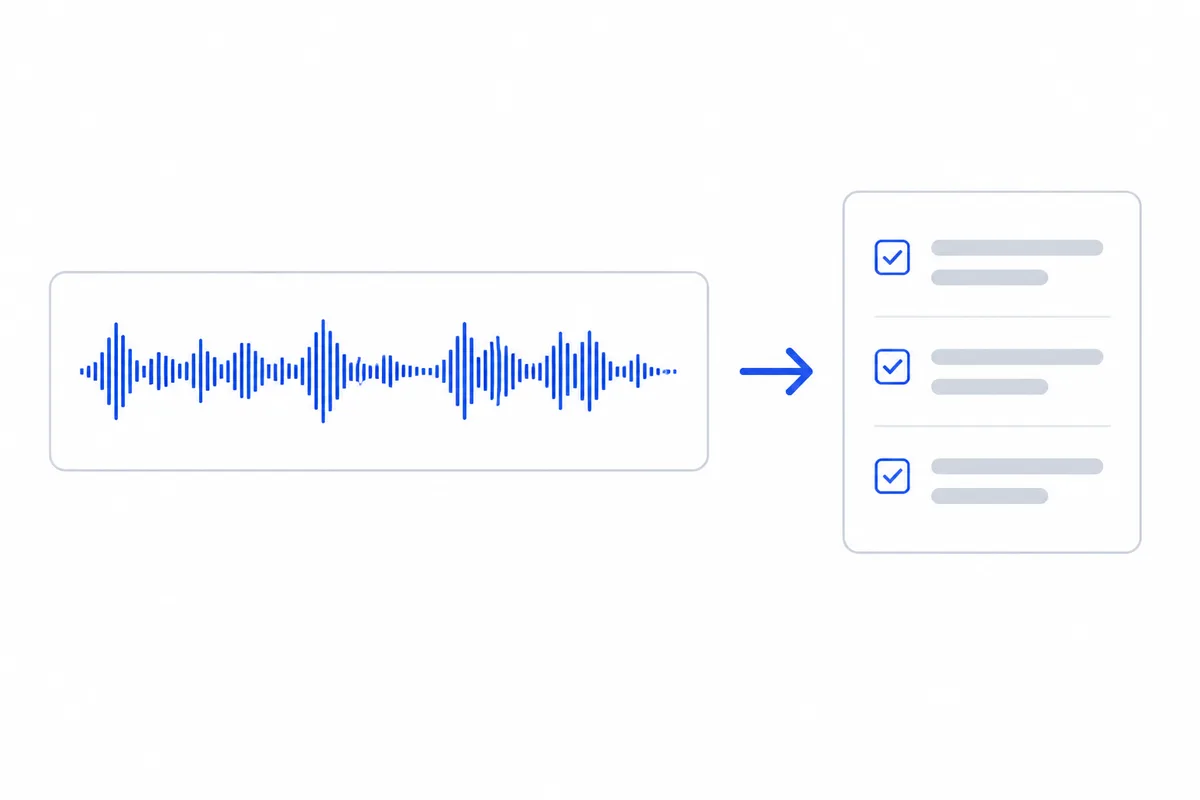
The meeting ended an hour ago. You have a recording — forty-seven minutes of discussion sitting in a file on your desktop. Writing the minutes should take fifteen minutes. Instead you press play, pause every few seconds to type, rewind when you miss a phrase, and ninety minutes later you are still at the halfway mark. This is why most meeting recordings never become minutes at all. The file sits in a folder, the decisions sit in people's memories, and by the next meeting nobody can agree on what was actually decided.
The path from a meeting recording to finished minutes has three stages: getting a usable recording, turning audio into text, and compressing that text into a document someone will actually read. Each stage has a few decisions that make or break the result.
Record with the Minutes Already in Mind
A bad recording makes a bad transcript, and a bad transcript makes useless minutes. Three habits help.
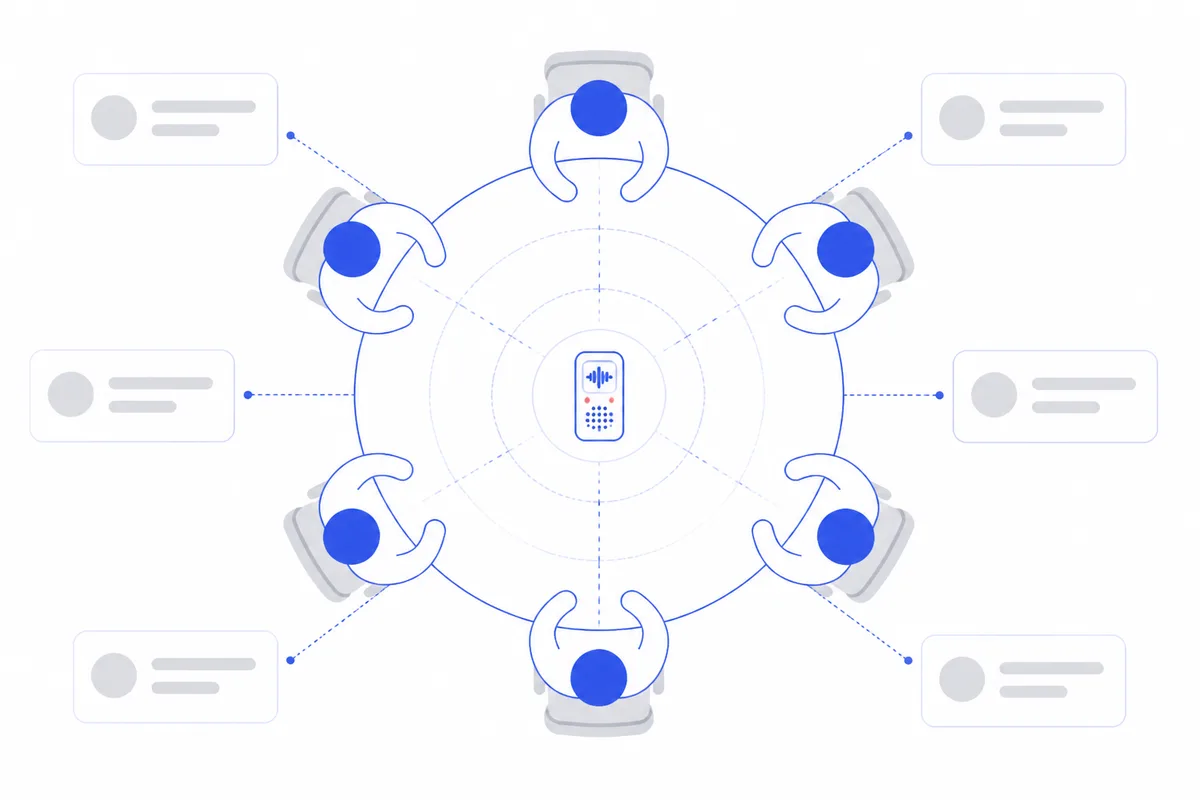
Place the microphone in the centre of the table, not next to your laptop. A recorder buried behind a screen picks up one voice clearly and turns everyone else into murmur. Equal distance means equal clarity.
At the start of the meeting, state the attendees and the agenda out loud. This plants anchor points in the recording — for you or for any tool that processes it later.
When a decision is reached, pause and restate it: "So we are going with option B, and Lee will send the contract by Friday." That sentence will appear in the transcript verbatim, which makes pulling it into the minutes trivial.
Transcription — and Why It Matters Where It Runs
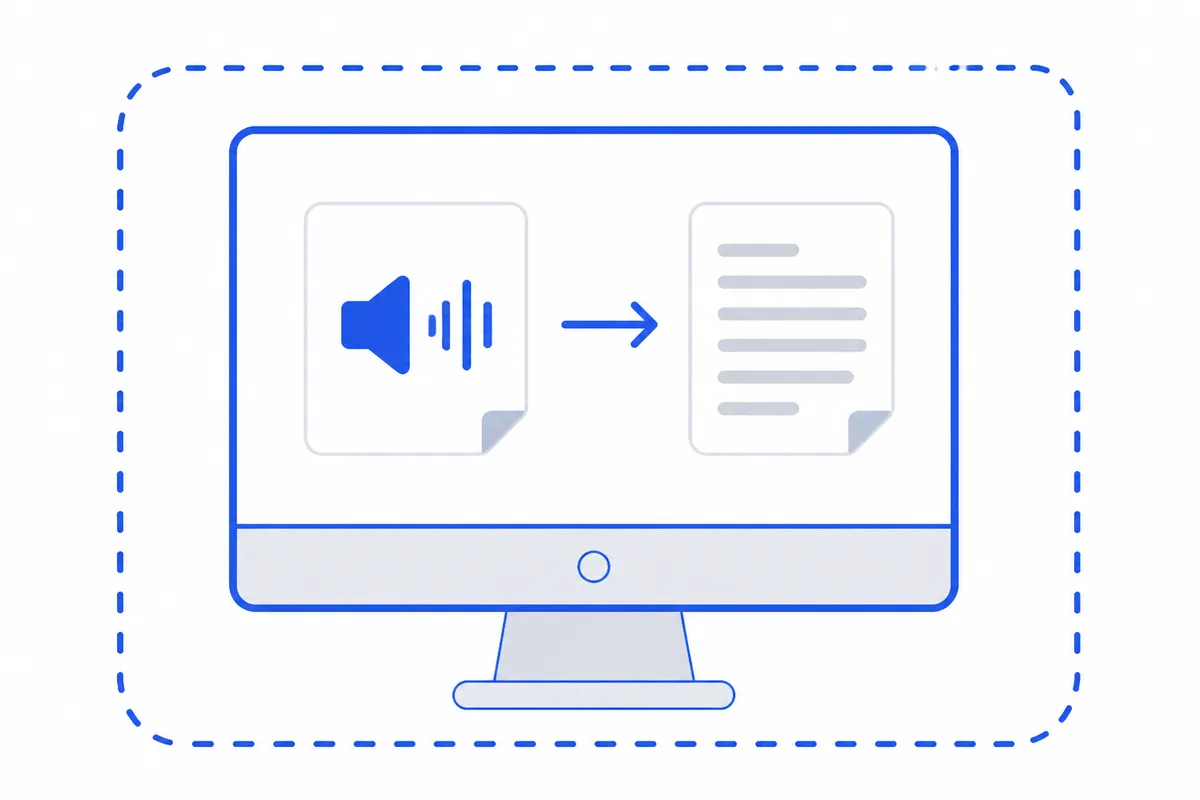
Transcription is the step that turns speech into text. You can upload the file to an online service, or you can run the conversion on your own machine.
The difference is not just speed. A meeting recording often contains project names, budget figures, personnel decisions, and candid remarks people made without thinking about an audience. Uploading that file to a remote server means handing it to a third party. For legal, HR, and research teams, that can be a real problem.
Local transcription processes the audio on your PC, so the recording itself does not have to be uploaded anywhere to become text.
From Transcript to Finished Minutes
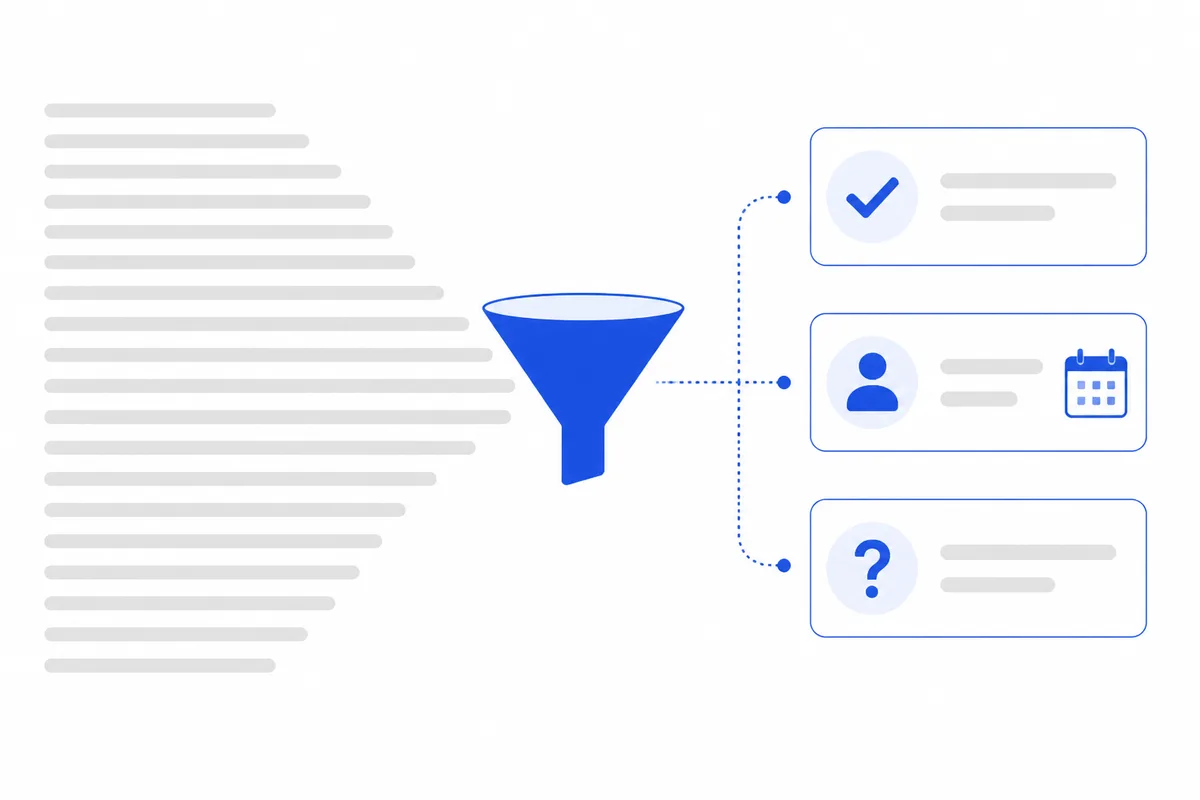
A transcript is not minutes. It is a record of everything said — filler, tangents, and three people saying "right, right" in a row. Your job is to compress it into three blocks.
Decisions. What was agreed? State each one in a single sentence.
Action items. Who does what, by when? Every item needs an owner and a deadline. "We should look into this" is not an action item. "Chen will evaluate both vendors and report back by October 3" is.
Open questions. What was raised but not resolved? Listing these keeps them from vanishing until someone remembers mid-project.
A detailed breakdown of how to structure each block is in How to Write Meeting Notes.
From Recording to Minutes in HanFlow AI Assistant
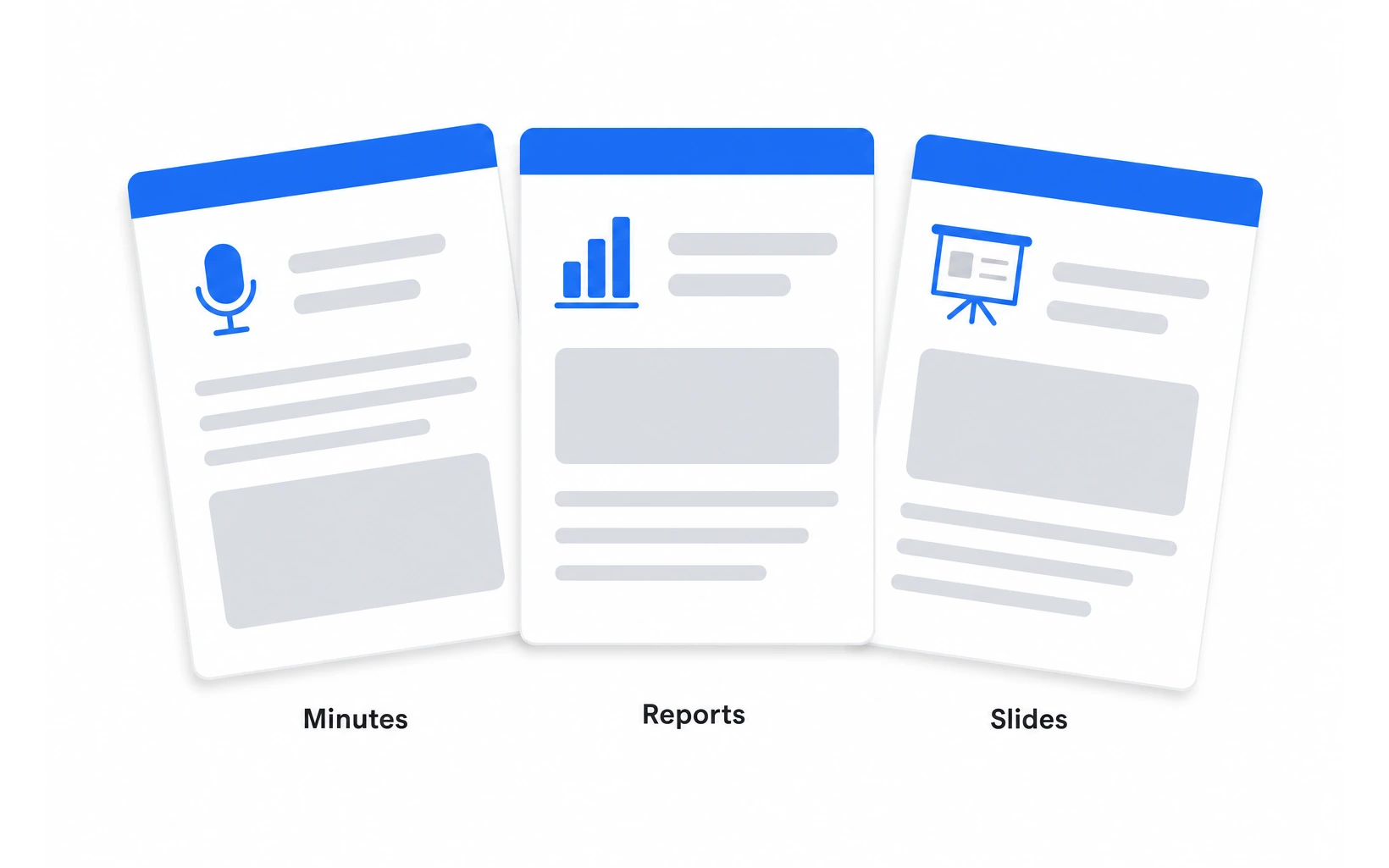
HanFlow AI Assistant is a Windows program for Windows 10 and 11 that handles this entire workflow in one place.
You give it the recording. Transcription runs inside your PC with no file-size limit, so a three-hour board meeting is handled the same way as a ten-minute standup. Once the text is ready, the AI drafts structured minutes — decisions, action items, owners, deadlines — from the transcript.
The document file is produced by a built-in engine, not by the AI itself, so formatting (headings, tables, numbering) stays intact. For English documents the output is a Word file. AI features such as drafting the minutes use an AI subscription you connect yourself.
If a document then needs to become a presentation, the same assistant can export it as a 16:9 PowerPoint deck.
Where Your Data Goes
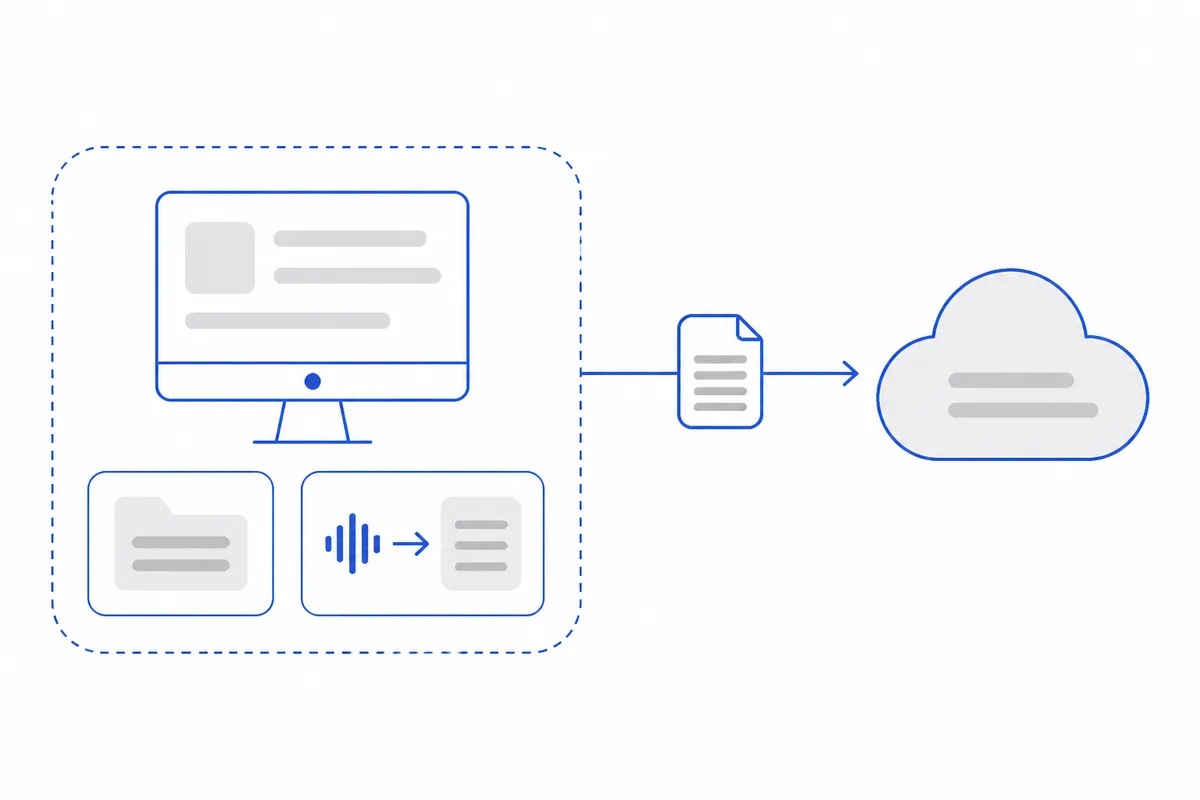
This is the question worth asking about any tool that processes meeting recordings.
In HanFlow AI Assistant, recordings and documents are stored on your own PC, not uploaded to HanFlow servers. Transcription — speech to text — runs inside your PC. When you use an AI feature, such as turning the transcript into minutes, the text you send goes to the AI provider through your own subscription.
The diagram above shows the boundary: audio processing and file storage happen on your PC; the AI step is the only point where transcript text goes out, and it travels through a subscription you control.
Review Before You Send
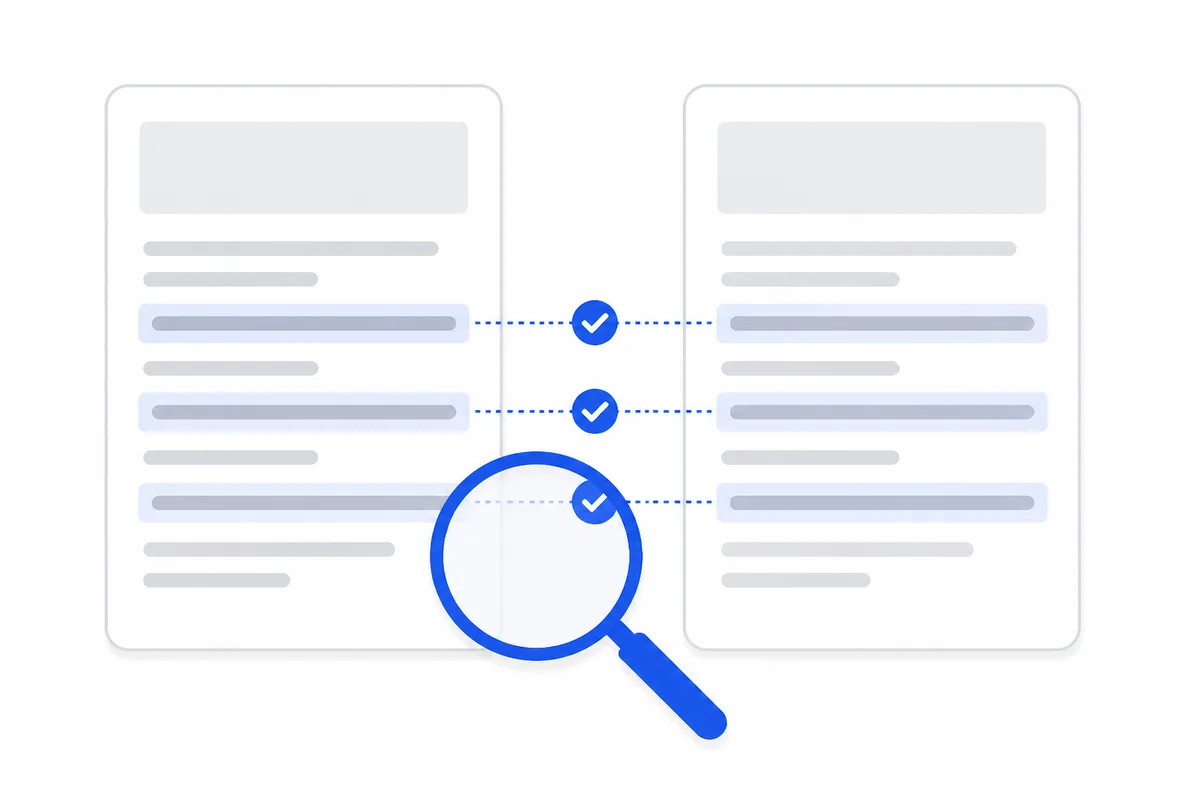
No AI-drafted document should go out without a human check. Read the draft against the transcript for three things. Are the decisions stated correctly? Are the right names attached to the right action items? Are the numbers — dates, budgets, quantities — accurate? A machine can extract structure from a conversation, but only someone who was in the room knows whether "next Thursday" meant the 2nd or the 9th.
Frequently asked questions
How long does it take to convert a meeting recording to minutes? It depends on the recording length and your computer. The real saving is that you no longer replay the file: you read a transcript and a drafted set of minutes, then correct what needs correcting.
Can I use this with very long recordings? In HanFlow AI Assistant, there is no file-size limit on recordings. Whether the meeting ran twenty minutes or four hours, transcription runs the same way on your PC.
Does the AI write the document file directly? No. The AI drafts the content, and a built-in engine writes the actual document file. This separation keeps formatting — headings, numbering, tables — intact rather than producing raw text you would need to reformat.