Write a Payment Reminder Email With AI — Your Numbers, Not the AI's
You need to chase an unpaid invoice, or maybe send a quote before the deal goes cold. You could write the email yourself, but you have done it enough times to know the shape of it by heart — it is the numbers that matter. Get the amount wrong, paste the wrong bank account, and the email does more harm than not sending one at all. HanFlow AI's Business email drafts tool writes the body of the email for you, but it never touches the figures. You type them once, they go into the draft exactly as entered, and the AI fills in everything around them.
Pick What the Email Is About
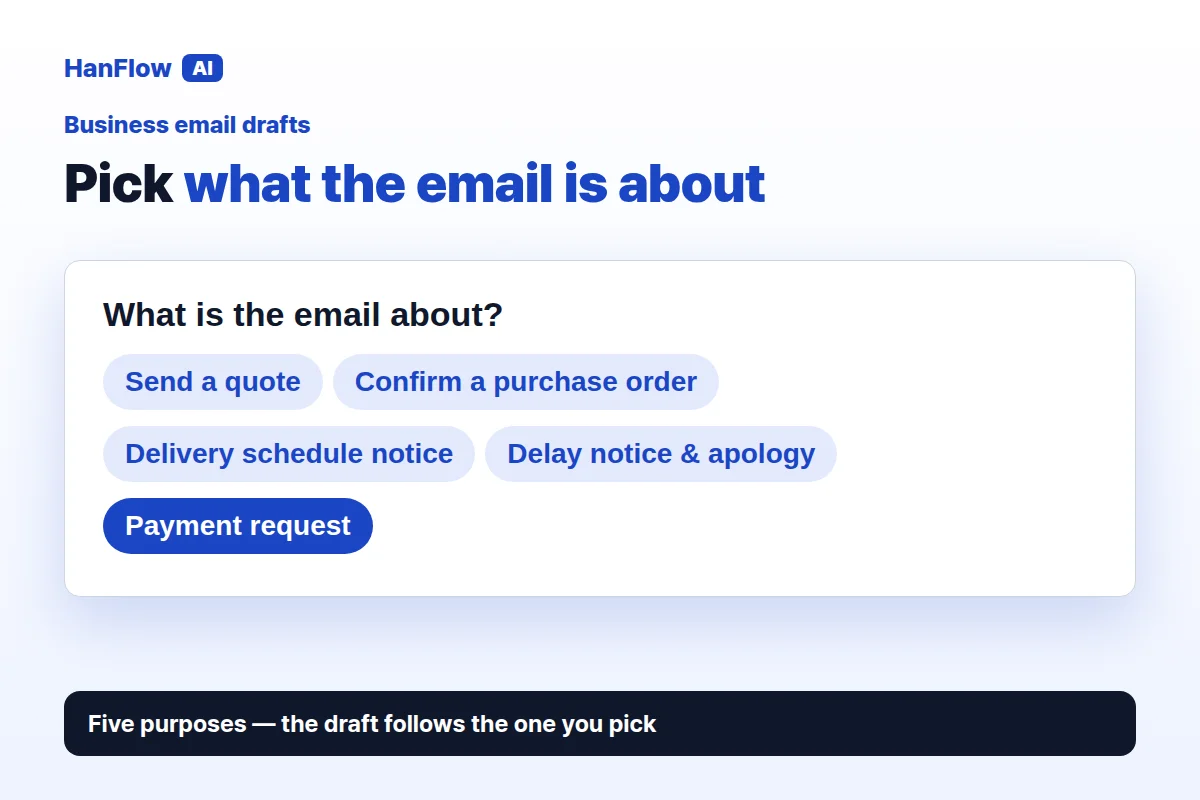
Open the Business email drafts tool and start with the section What is the email about?. There are five buttons: Send a quote, Confirm a purchase order, Delivery schedule notice, Delay notice & apology, and Payment request. Pick one. The tool uses your choice to set the tone and structure of the draft — a payment request reads differently from a delivery notice, and the AI handles that distinction so you do not have to rewrite the opening paragraph yourself.
Say Who It Is For
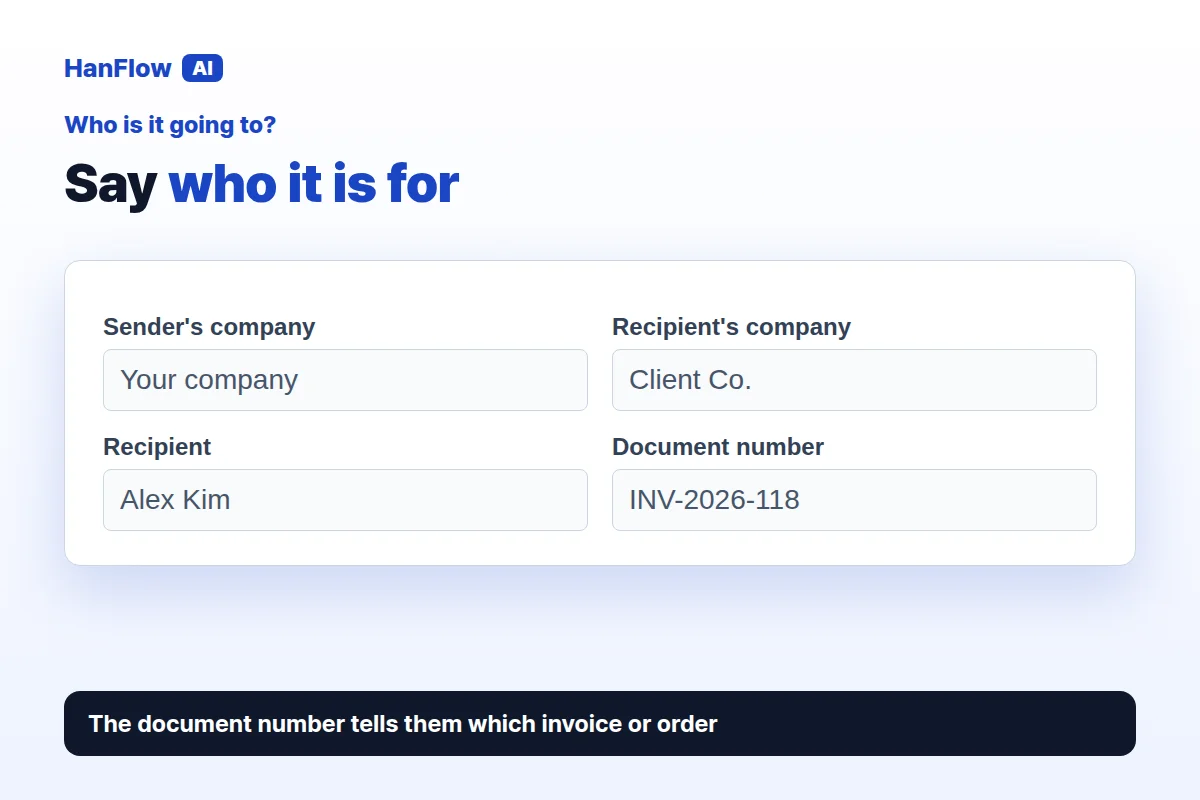
Under Who is it going to?, fill in four fields: Sender's company, Recipient's company, Recipient (the person's name), and Document number. The document number can be an invoice number, a purchase order reference, or whatever ID ties the email to a specific transaction. These go into the draft so the recipient knows immediately which document you are writing about.
Type the Facts Once
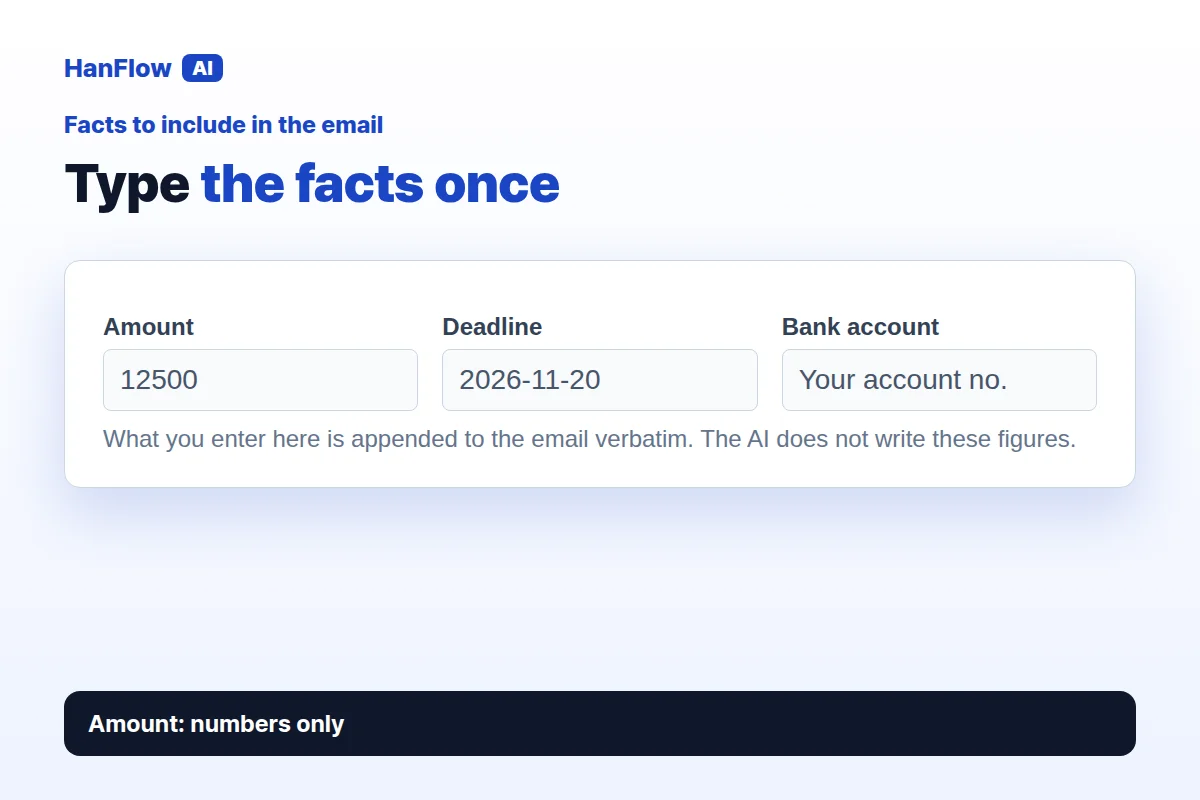
The section Facts to include in the email is where you enter the numbers that matter. There are three fields: Amount, Deadline, and Bank account. The amount field accepts numbers only — if you type letters, the page tells you to enter the amount as a number. There is also an Anything to add field for optional notes.
Here is the key part: what you enter here is appended to the email verbatim. The AI does not rewrite these figures. It does not round your amount, guess a deadline, or substitute a bank account. The number you type is the number that appears in the draft.
The AI Never Writes the Figures
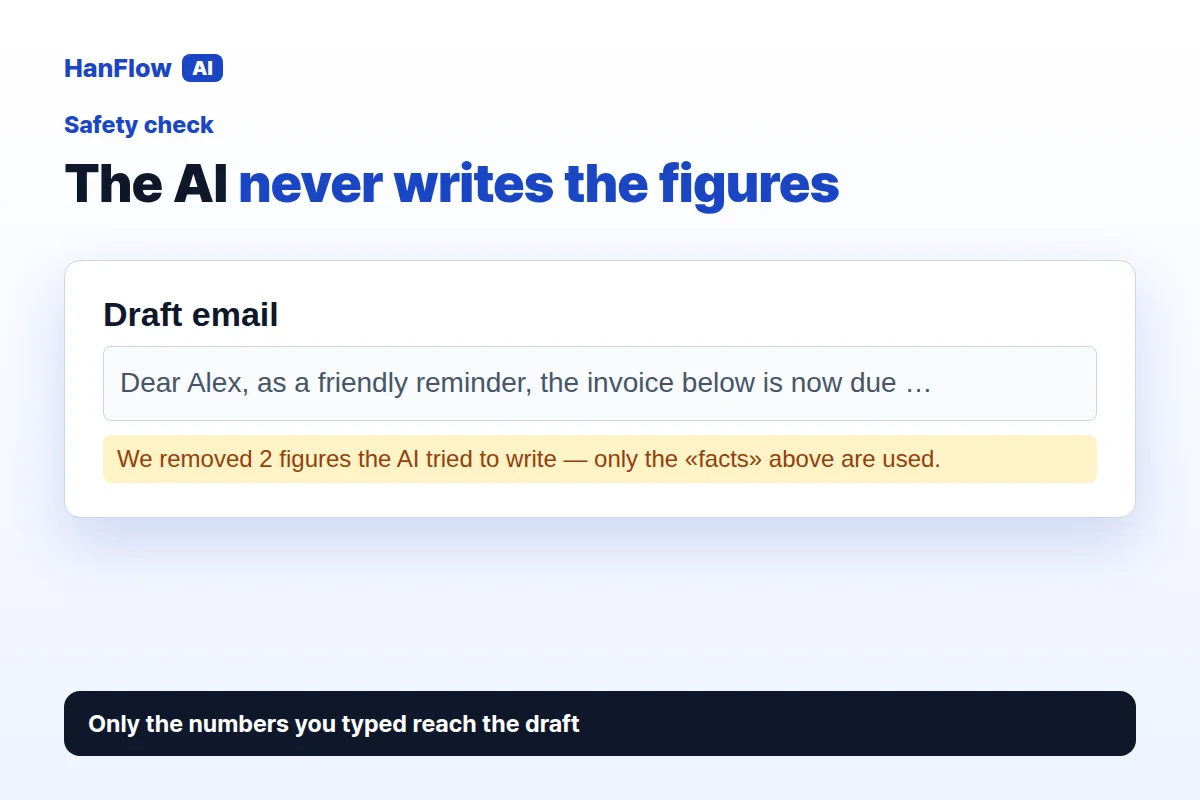
The tool is built so the AI writes sentences, not numbers. But language models sometimes try. If the AI writes a figure of its own, the tool removes it and tells you how many it removed: "We removed n figures the AI tried to write — only the facts above are used." You see exactly how many were caught. The only numbers in your draft are the ones you typed yourself.
Copy It and Send It Yourself
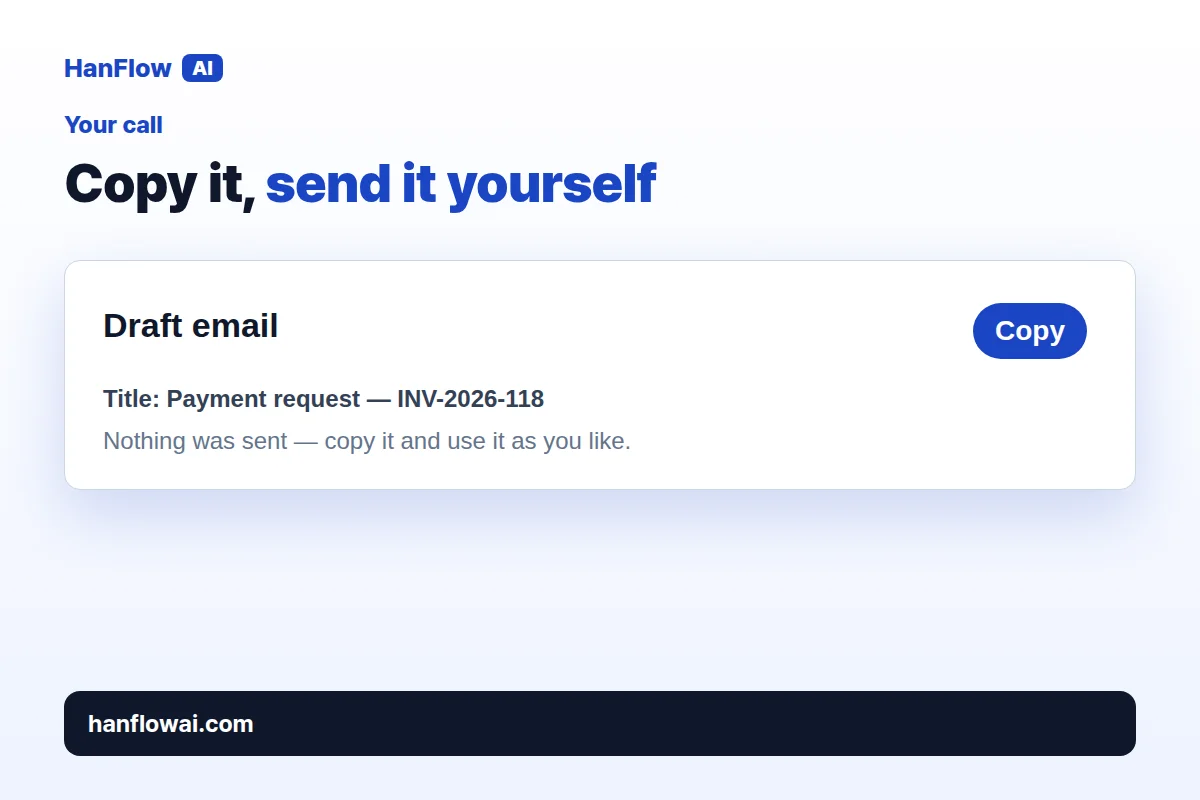
Press Create draft. The button shows the credit cost before you press it, so you see it first. The result appears as a Draft email with a subject line and body. A Copy button sits next to it. Below the draft, the page confirms how many credits were used and reminds you: "Nothing was sent — copy it and use it as you like."
The tool does not send the email. You copy the text, paste it into your own email client, review it, and send it when you are ready.
Frequently Asked Questions
Does it send the email?
No. The tool drafts the email and shows it on screen. Nothing is sent to anyone. You copy the draft, paste it into your email client, and send it yourself.
Can I change the wording after the draft is created?
Yes. The draft is text you can copy and edit however you like. Add a line, soften the tone, remove a paragraph — it is your email once you copy it.
What if the AI adds a number I did not type?
The tool detects figures the AI tried to write on its own and removes them. The page tells you how many were removed. Only the figures you entered in the facts section appear in the final draft.
Does it work for quotes and order confirmations too?
Yes. The five purpose buttons cover Send a quote, Confirm a purchase order, Delivery schedule notice, Delay notice & apology, and Payment request. Pick the one that matches your situation, and the draft follows that structure.