Otter.ai Alternative When Meeting Minutes Must Be a Word File
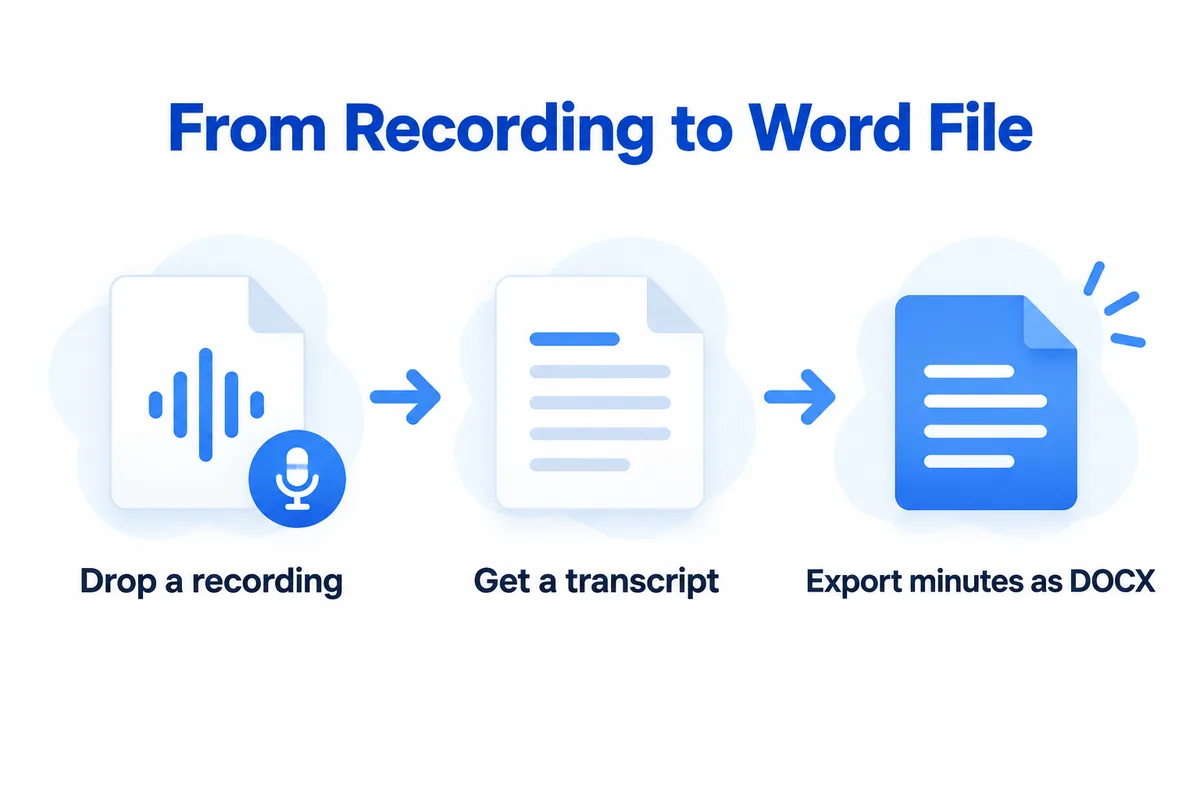
If you want an Otter.ai alternative because your meeting minutes have to end up as an editable Word file, look at tools that go from a recording to a formatted document. HanFlow AI is one: you give it a recording file, it transcribes the audio on your PC, and its AI drafts minutes with decisions, action items, owners and deadlines. A built-in document engine then exports a Word file with headings, tables and numbering intact. You can also export a 16:9 PowerPoint.
What Otter is built for
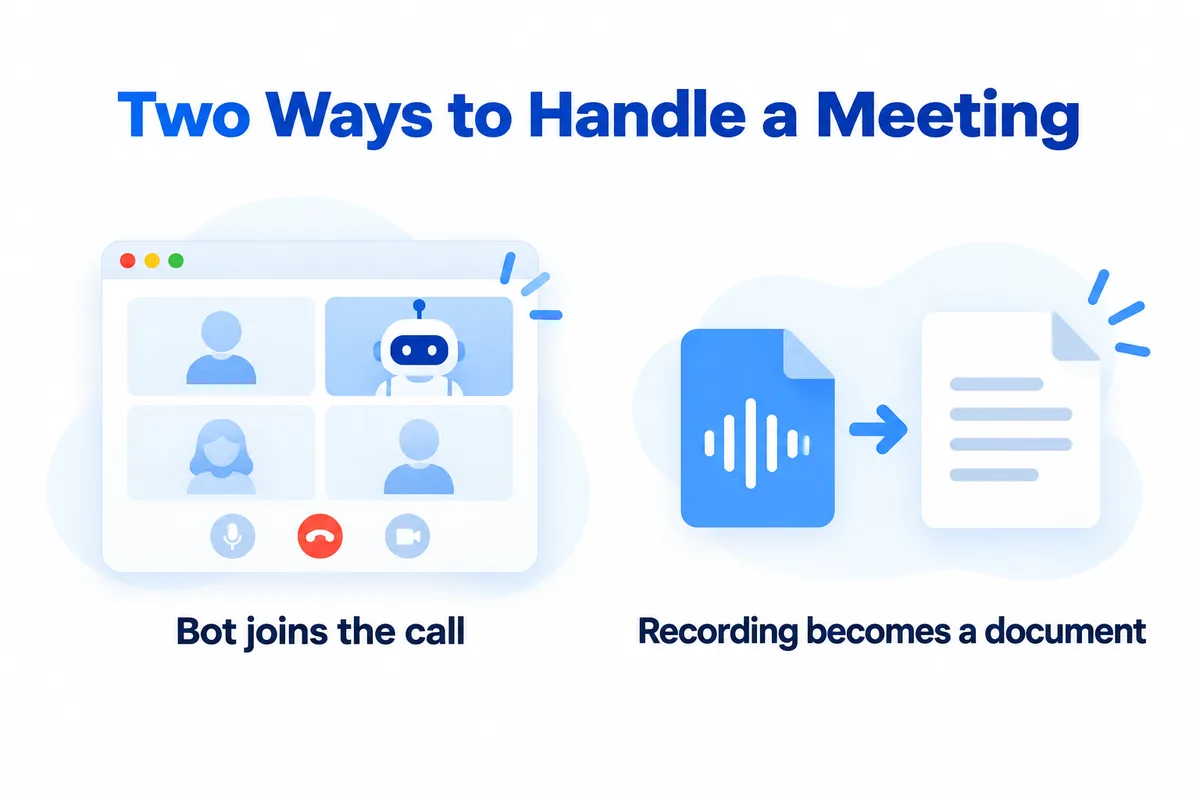
Otter joins Zoom, Microsoft Teams and Google Meet to automatically transcribe the conversation. It provides live transcription with speaker identification, AI-generated summaries with action items and outlines, and an AI chat you can use within and across meetings. Transcription is available in English, Spanish, French, German, Japanese and Chinese. There is a free Basic plan and paid Pro, Business and Enterprise tiers, each with monthly transcription limits and a cap on imported audio and video files. Paid plans add integrations with Salesforce, HubSpot and Zapier. Otter runs on iOS, Android and the web. (Otter.ai pricing page, checked October 2026.)
Otter is a strong choice when your team lives inside video calls and wants notes shared right after the meeting ends. The gap appears when you need a formatted document — a Word file with headings, tables and structure — rather than a transcript.
Transcription that runs on your PC
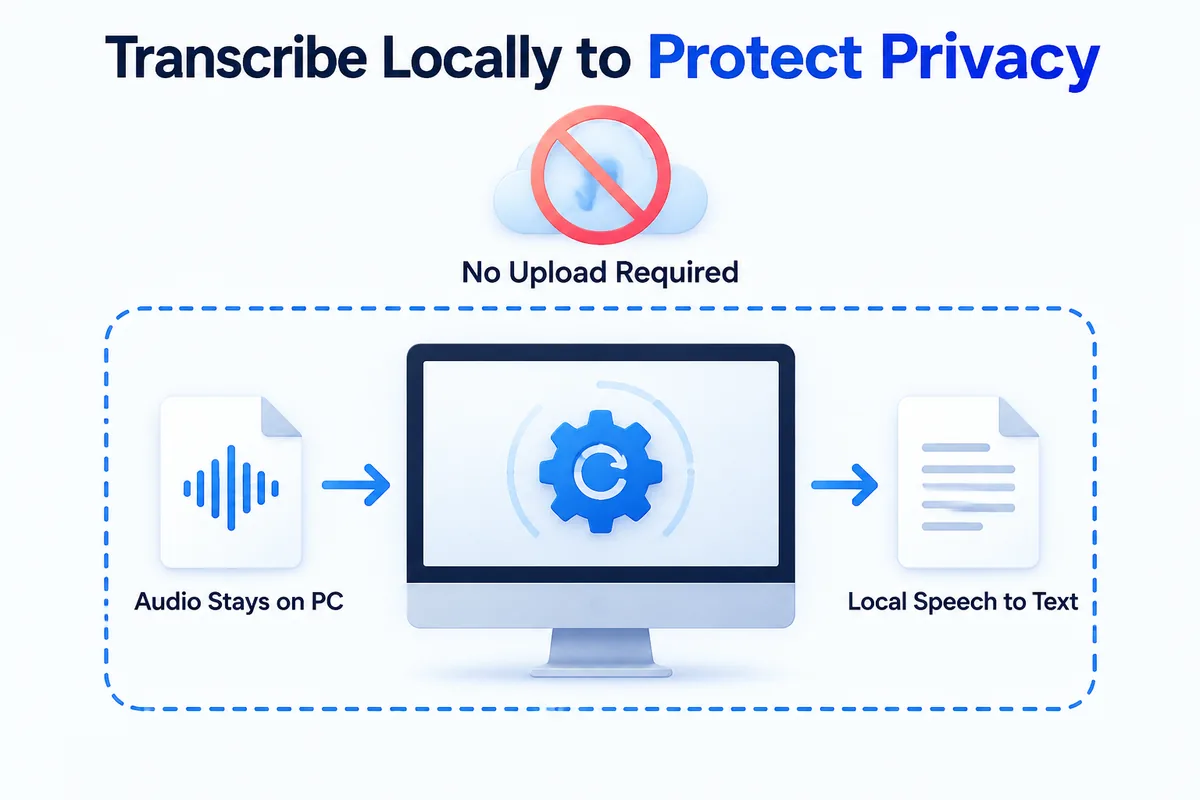
HanFlow AI Assistant is a Windows 10 and 11 desktop program. You drop a recording file into it — no file-size limit — and the speech-to-text conversion runs inside your PC. There is no separate charge for transcription. The first time, you download the speech engine once from the microphone button or Settings › Voice input engine.
From recording to a Word file
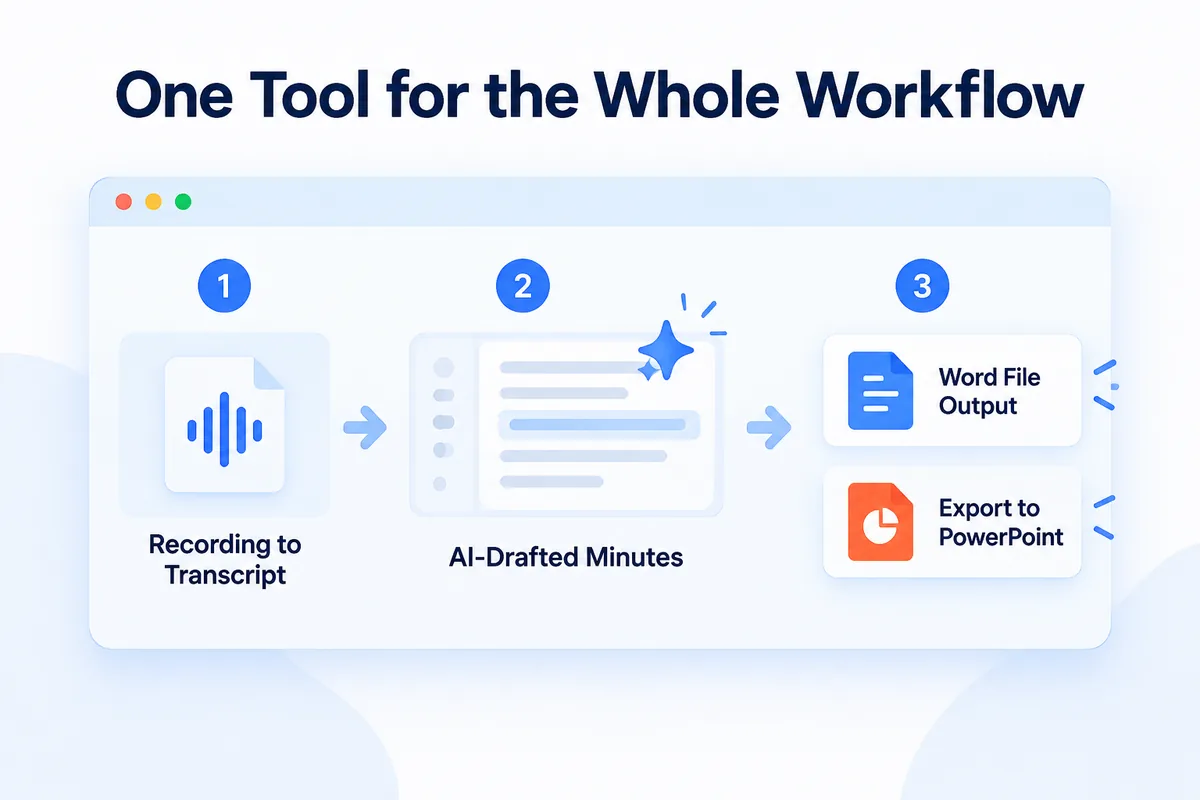
Once the transcript is ready, the AI drafts meeting minutes that include decisions, action items, owners and deadlines. The built-in document engine writes a Word file; headings, tables and numbering stay in place. If you need a slide summary of the meeting, you can export a 16:9 PowerPoint as well.
Where your data goes
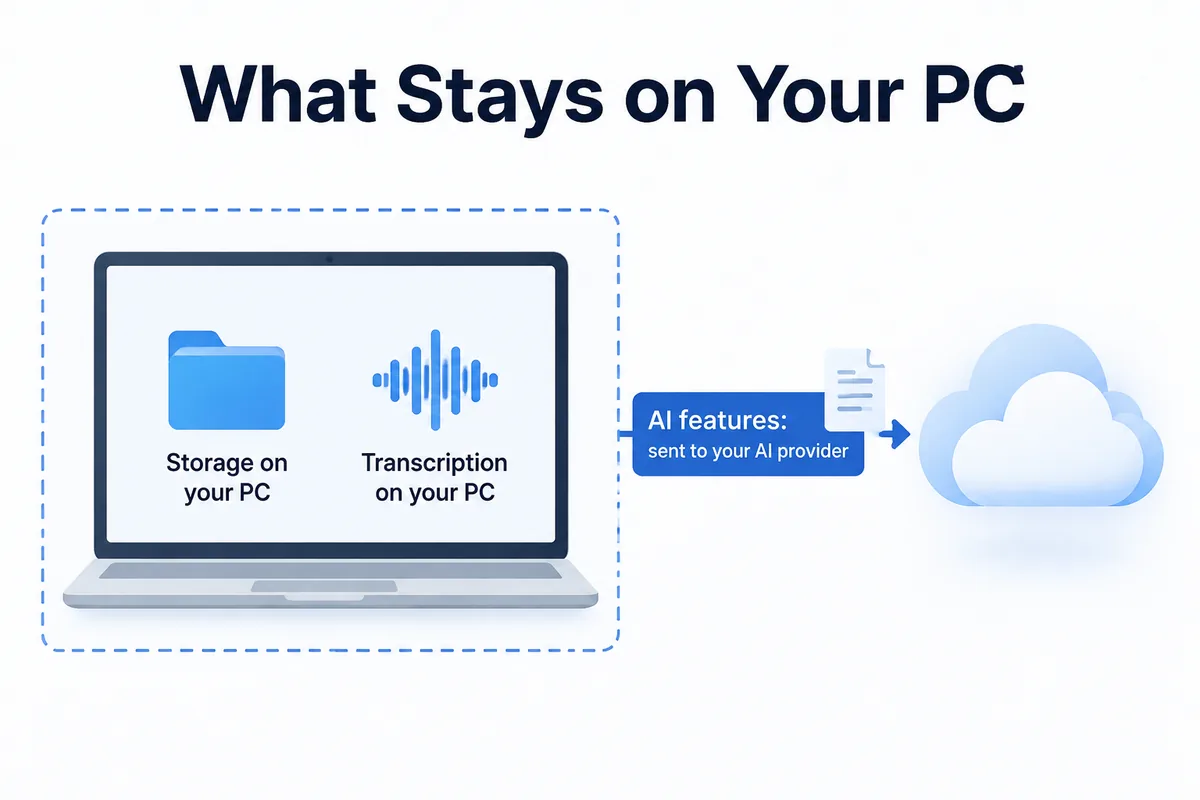
- Recordings and documents are stored on your PC, not our servers.
- AI features send the transcript to the AI provider you connected, using an AI subscription you connect yourself.
- Transcription runs inside your PC.
Which one to choose
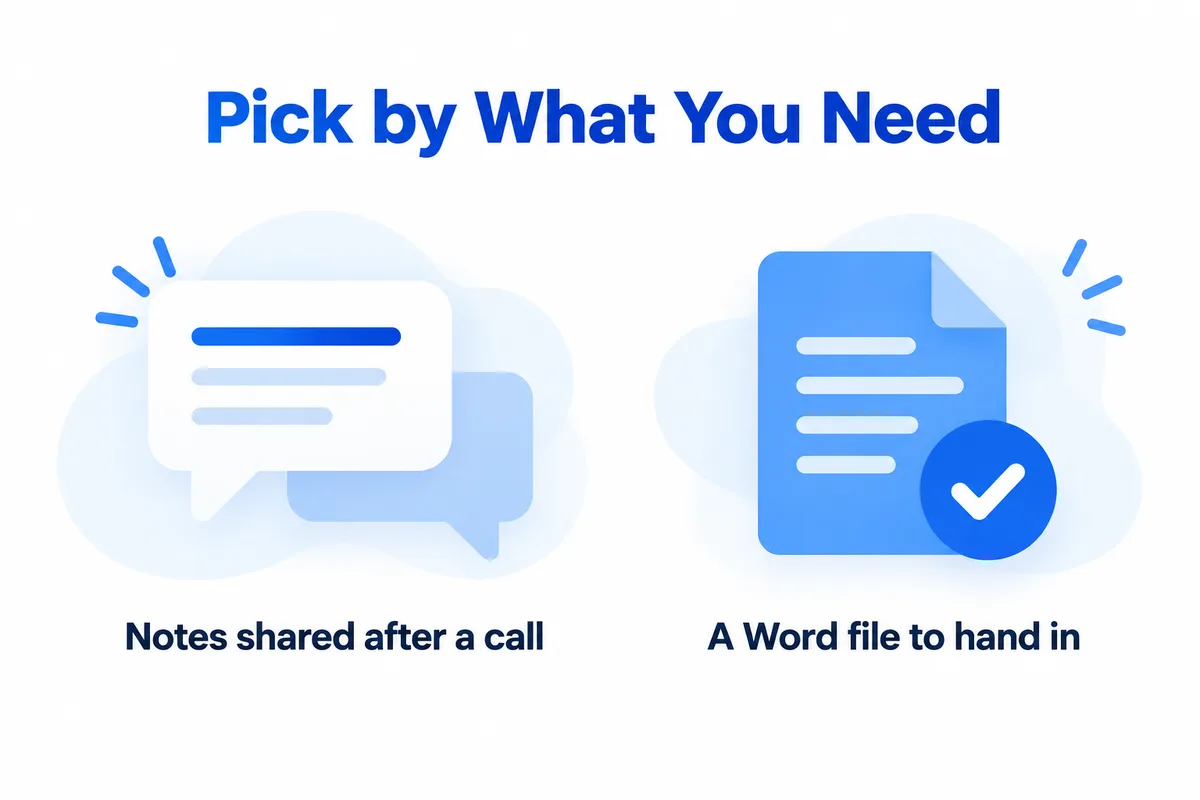
- Choose Otter if your team uses Zoom, Teams or Google Meet and wants live transcription, speaker identification and notes shared automatically after the call.
- Choose HanFlow AI if your deliverable is a Word file with structured minutes — decisions, action items, owners and deadlines — or a PowerPoint summary from a recording.
- Either way, review the output before you send it.
Frequently asked questions
Does HanFlow AI join Zoom or Teams calls?
No. You give it a recording file after the meeting. It does not join the call.
Does transcription cost extra?
No. Transcription runs on your PC with no separate charge.
Which file does it produce?
A Word document with headings, tables and numbering. You can also export a 16:9 PowerPoint.
Download HanFlow AI Assistant for Windows at https://hanflowbot.com/download/assistant/win.