How to Make a Quotation From Your Item List — Excel and PDF
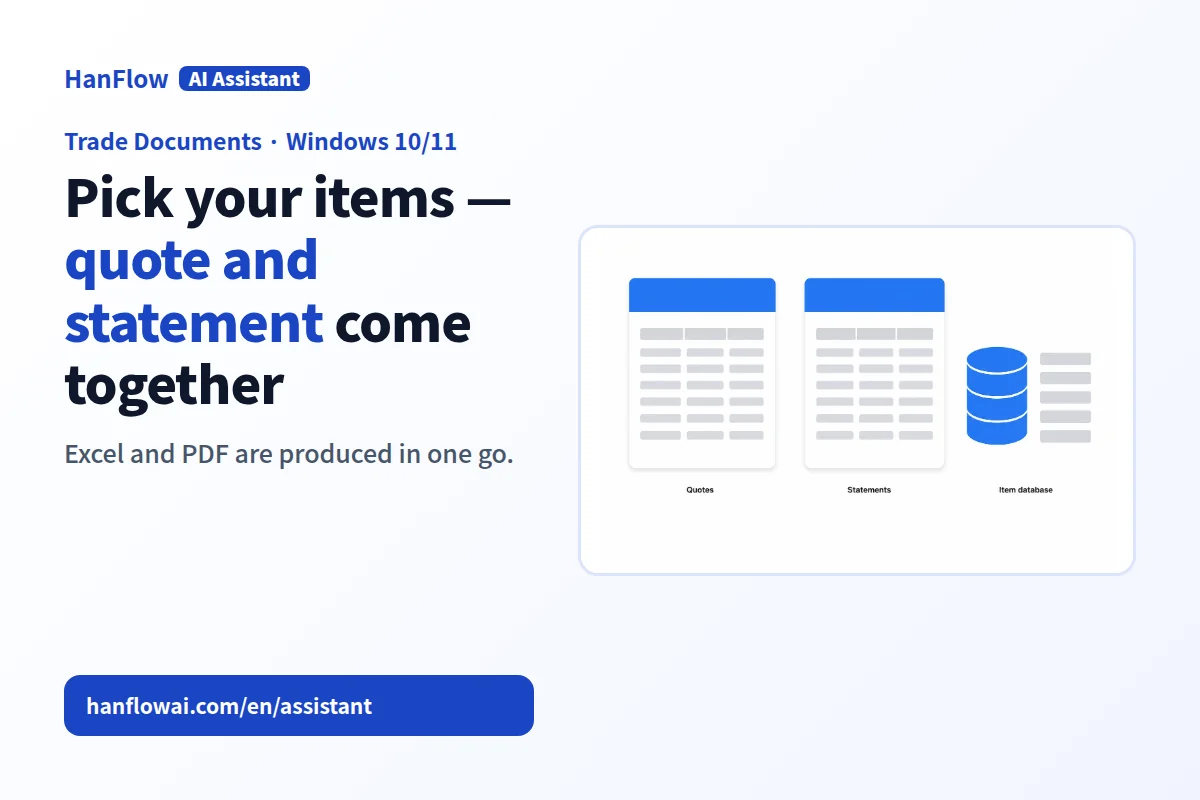
A quotation starts with a single, current item list — not a copy of last month's file with prices crossed out. Keep one list that holds every product or service you offer, complete with specs, unit prices, and photos. When a client asks for a quote, pick the relevant items, set a target total if they gave you a budget, and export an Excel file for your records and a PDF to send.
That approach eliminates the drift that happens when ten versions of a price sheet float around your office. It also means the transaction statement you issue later matches the original quote, and paid/unpaid tracking follows from the same data. Consistent file naming across quotes, statements, and trade emails keeps everything findable months down the line.
Keep one item list, not a folder of old quotes
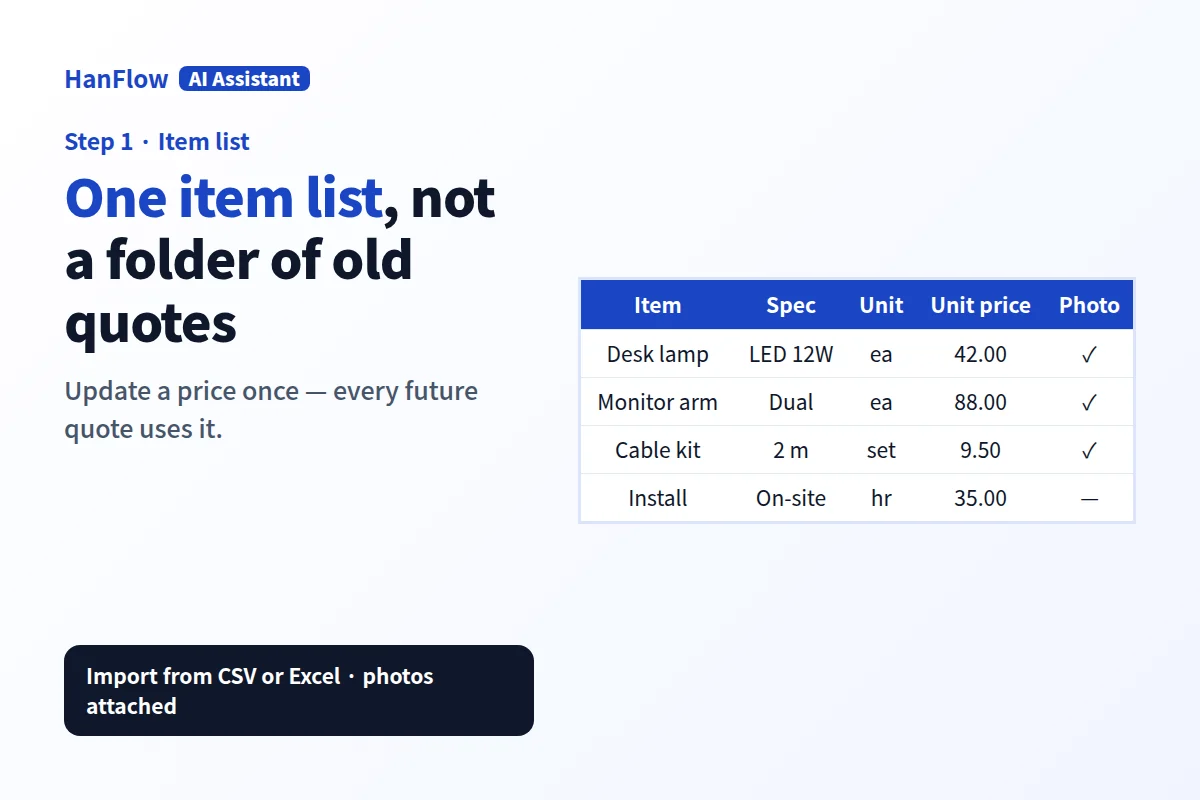
Most businesses store pricing inside old quote files. Need a new quote? Open the last one, change the date, swap a few line items, save-as. After a year you have forty files and nobody is sure which one carries the current price for part #B-220.
A single item list solves this. Five columns do the job: item name, specification, unit, unit price, and a product photo where it helps. When a price changes, you update one record. Every future quote pulls from the same source, so stale numbers stop slipping through.
If your list already lives in a CSV or Excel file, you can import it directly rather than retyping. Column headers in Korean or English are recognized automatically.
What every quotation must include
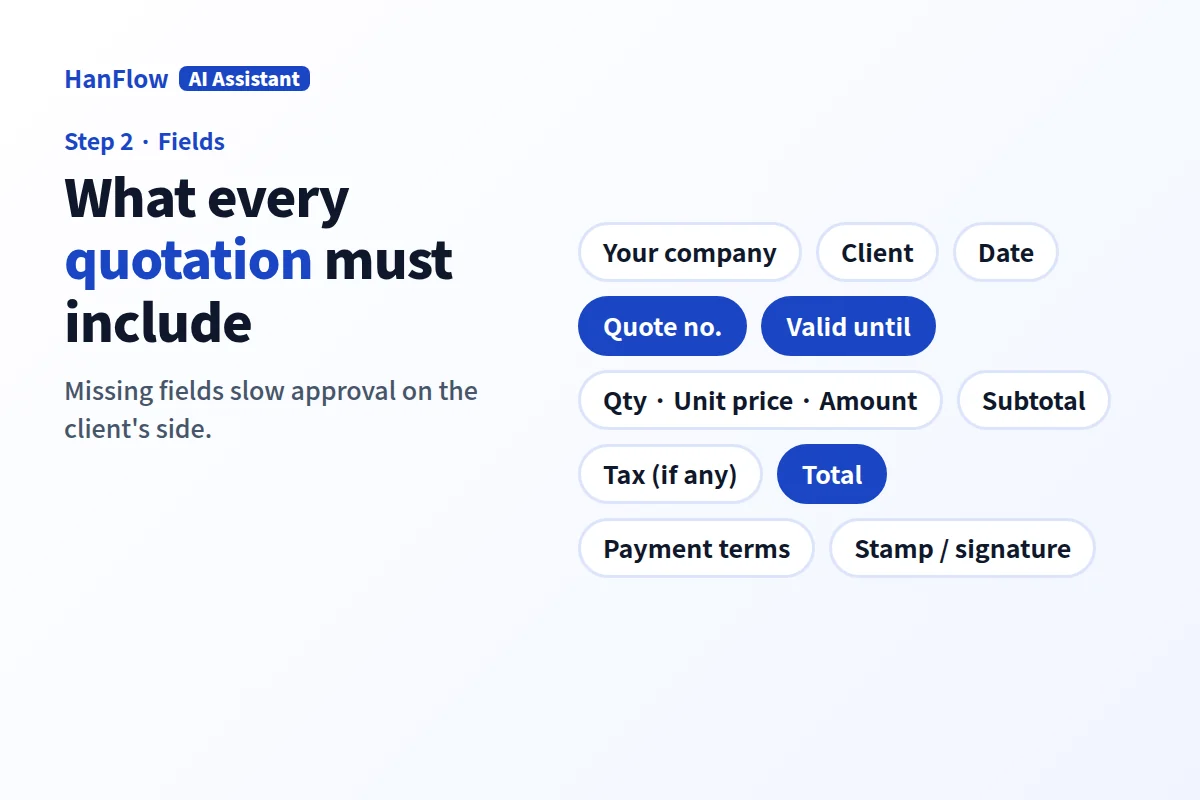
A quote missing key fields slows approval on the client's side. Make sure yours contains:
- Your company name and contact details
- Client name and address
- Date and quote number
- Validity period — how long the prices hold
- Line items: description, quantity, unit, unit price, amount
- Subtotal, a tax line where applicable, and total
- Payment terms — when and how you expect payment
- Stamp or signature, if your industry or region requires it
A numbering pattern you follow every time — year-sequence, for example — makes retrieval easy months later.
Working to a budget: the target total
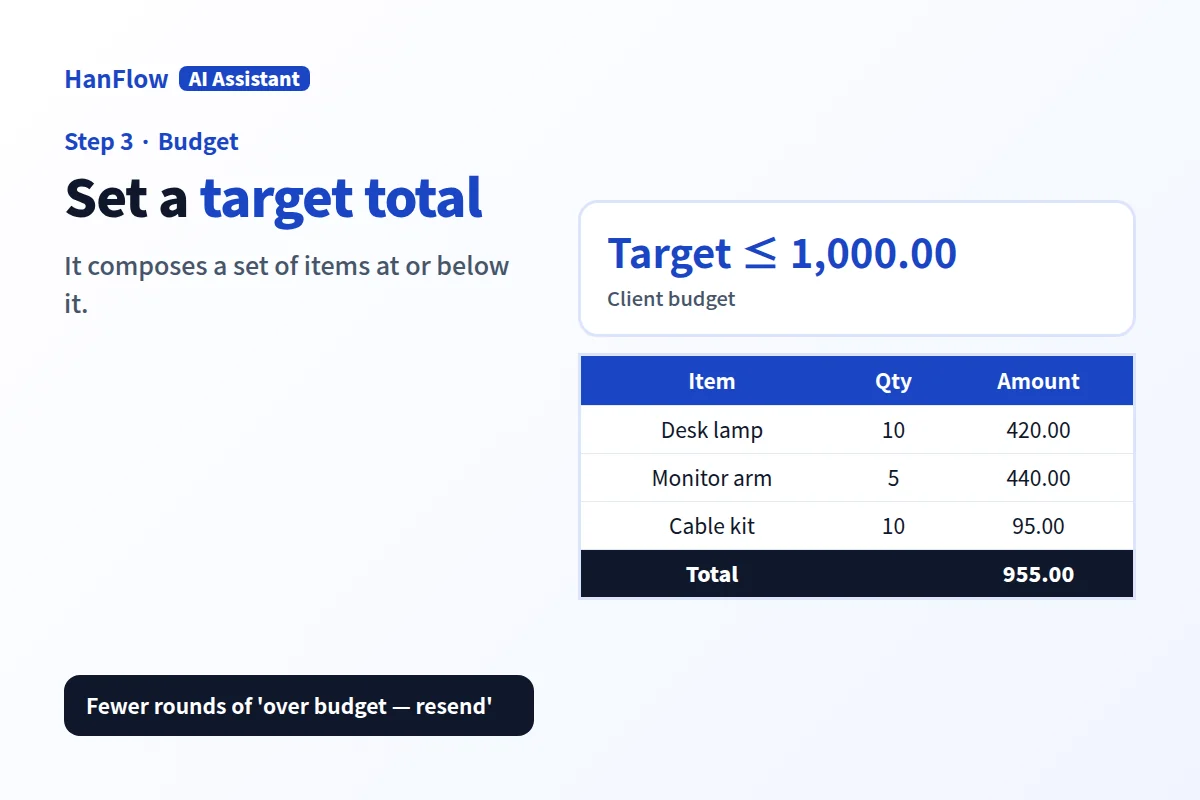
Sometimes a client names the budget before you start. "We have X to spend — what can you include?"
Instead of adding items line by line and watching the running total, set a target amount and compose a set of items that lands at or below it. This cuts the rounds of back-and-forth where you send a quote, the client says it exceeds the budget, and you trim and resend.
Send PDF, keep Excel, name files the same way
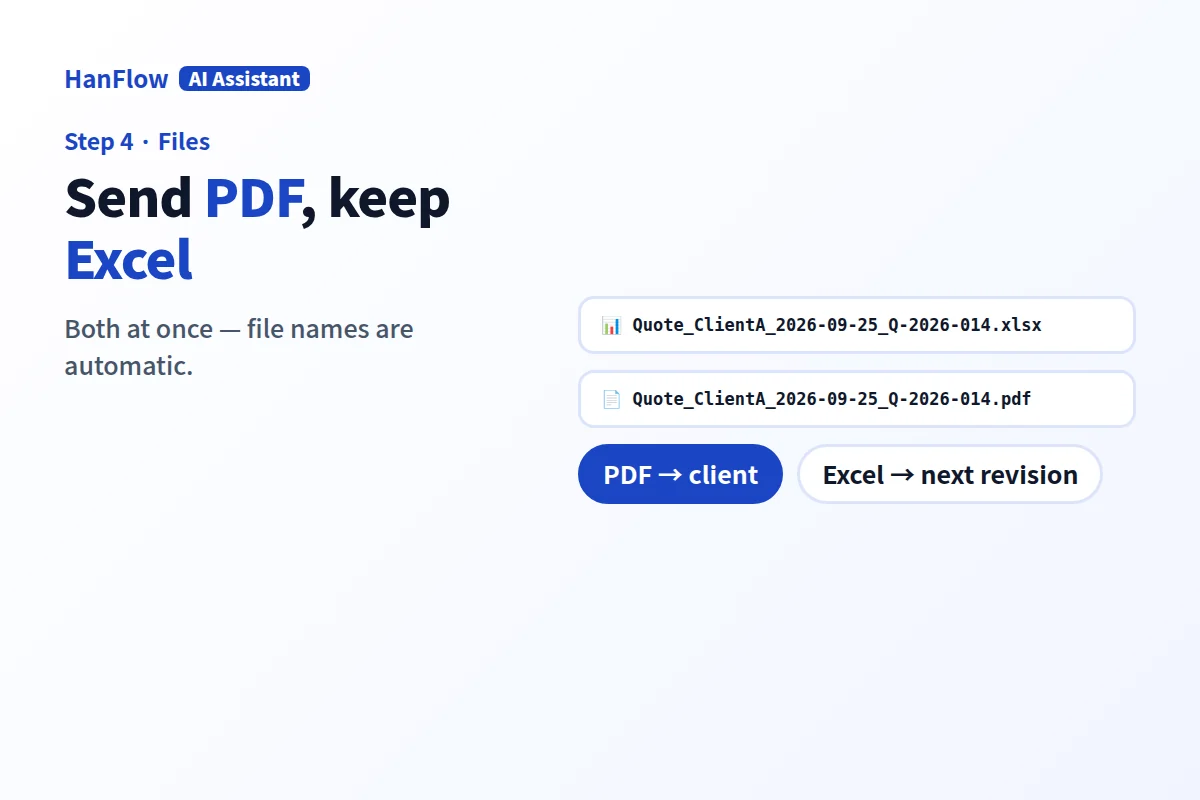
PDFs prevent accidental edits and look the same on every screen. Excel files let you adjust a quantity or swap a line before the next revision. Produce both at the same time and store them together.
File naming matters more than people expect. When every quote follows the same rule — client, date, quote number — you find the right document by searching a folder, not by opening ten files. Automatic naming removes the temptation to save something as "quote_final_v3_REAL.xlsx."
After the quote: statements and payment tracking
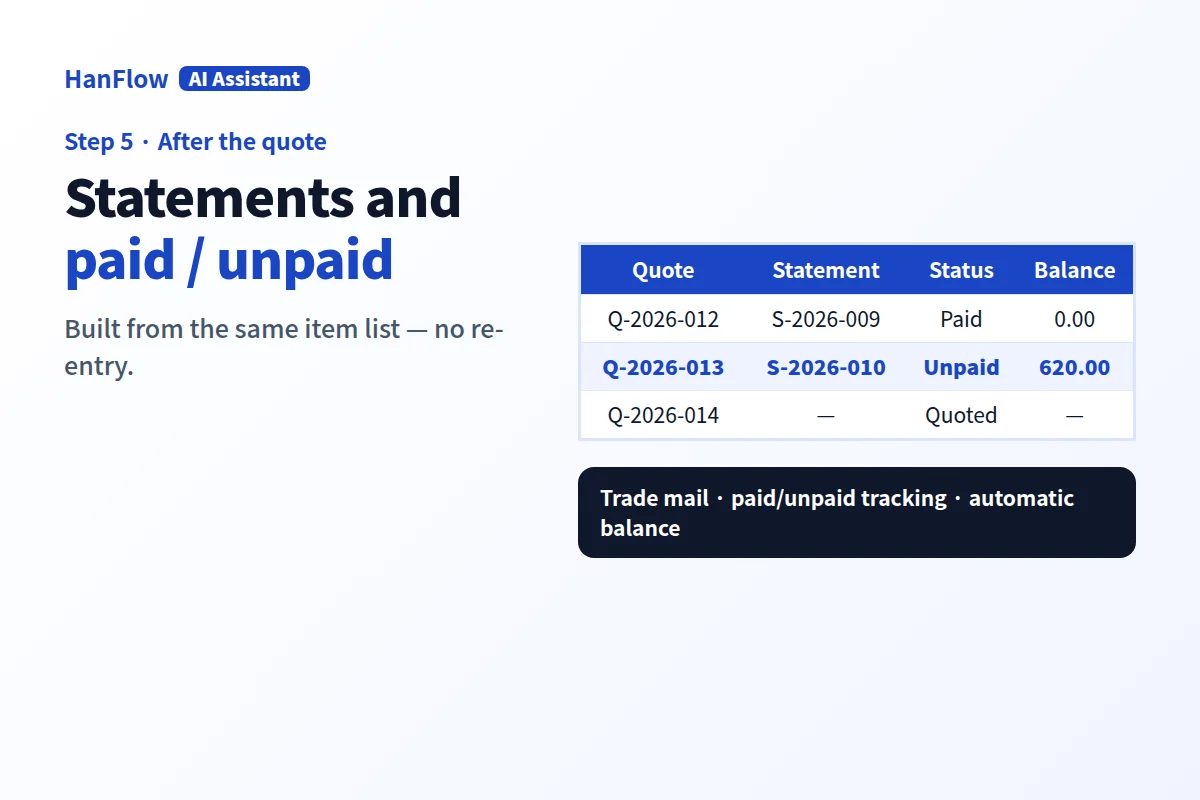
A quote is an offer. A transaction statement is the record of what was delivered and billed. If the statement is built from the same item list and the same quote, the numbers match without re-entry.
From there, tracking which invoices are paid and which are outstanding becomes straightforward. Trade emails reference the same quote number. A running balance tells you at a glance what is still owed. None of this works well when the quote and statement were built in separate spreadsheets with different item names or rounding.
Doing it in HanFlow AI Assistant
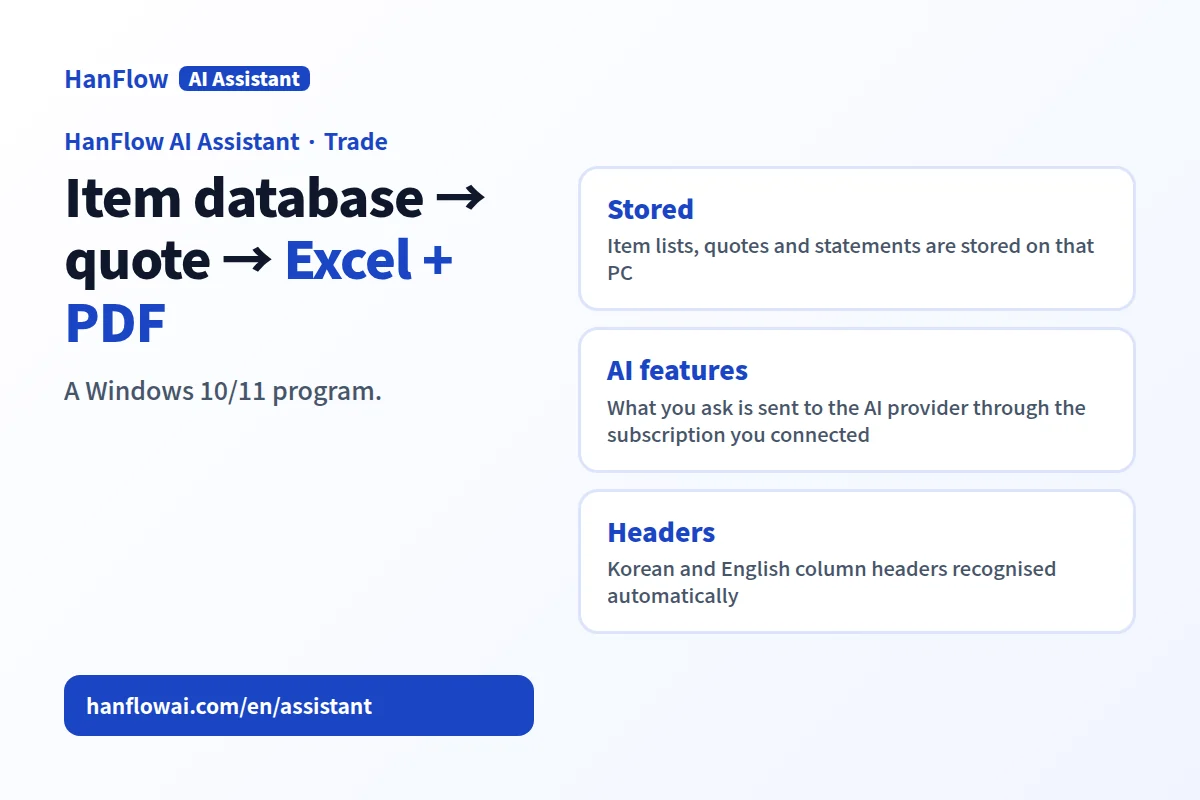
HanFlow AI Assistant is a Windows 10 and 11 program with a Trade Documents module that covers the workflow described above.
The item database imports from CSV and Excel files. Korean and English column headers are recognized automatically, and you can attach a photo to each item. When you build a quote, set a target amount and the tool composes a set of items at or below it. Excel and PDF are produced at once, and file names are generated automatically. Statements match the quotes they came from. Paid and unpaid tracking and automatic balance calculation are built in, along with trade email support.
Where your data lives. Your item lists, quotes, statements, and trade documents are stored on that PC. When you use an AI feature, the content of that request is sent to the AI provider through the subscription you connected yourself. Review any AI-generated output — item descriptions, amounts, totals — before sending it to a client, as errors are possible.
Frequently asked questions
What is the difference between a quotation and an invoice?
A quotation is an offer — it lists items and prices before a deal is confirmed. An invoice is a request for payment after goods or services have been delivered. The line items may look identical, but the intent differs: one says "this is what it would cost," the other says "this is what you owe."
Should I send a quote as PDF or Excel?
Send the PDF. It preserves formatting and prevents accidental changes on the client's end. Keep the Excel version internally so you can revise quantities or pricing for the next version without rebuilding the document.
How long should a quote be valid?
State an explicit validity period. Thirty days is common practice in many industries. Material costs, exchange rates, and supplier terms can shift, so an open-ended quote risks locking you into a price that no longer holds.
How do I number my quotes?
Pick a pattern and use it consistently. A year prefix followed by a sequential number (2026-001, 2026-002) is simple and sorts well. Some businesses add a client code or project code. The exact format matters less than consistency — every quote should be traceable by its number alone.