How to Generate a Quiz From a PDF or Textbook With AI
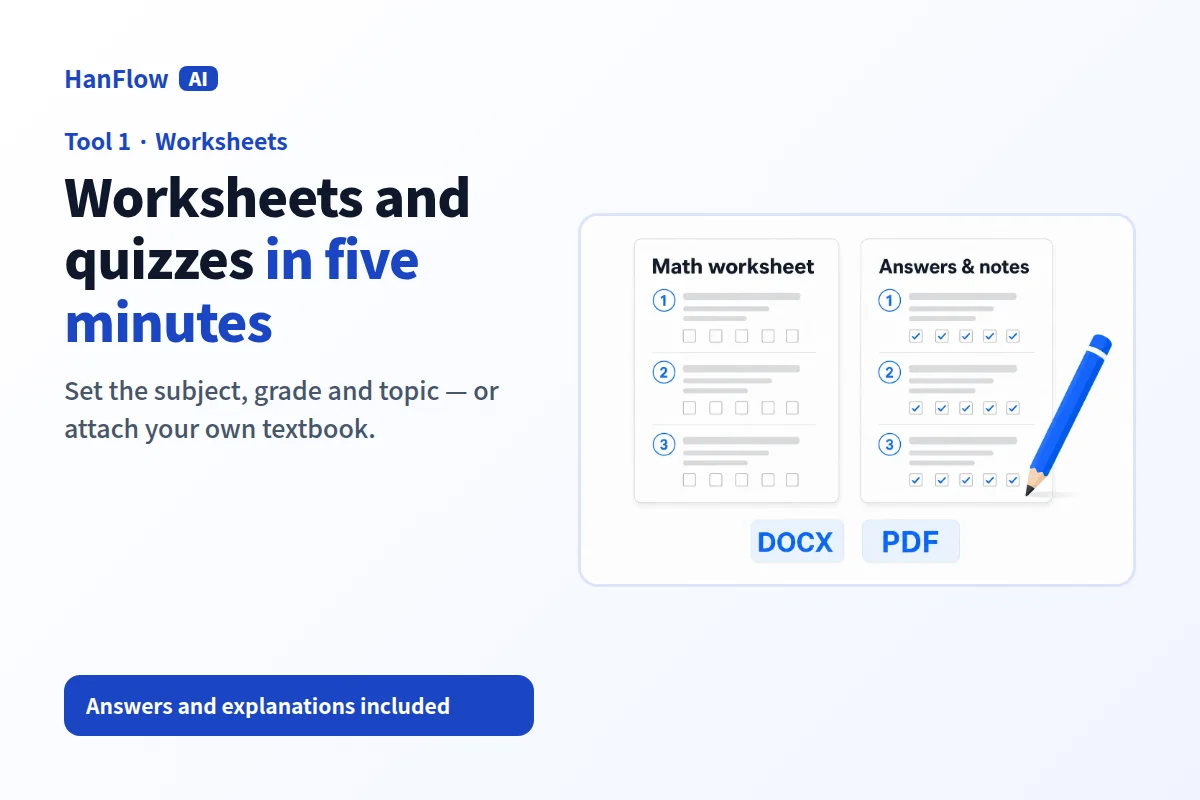
To generate a quiz from a PDF or textbook, upload the source material to an AI worksheet tool, set the subject, grade level, topic, question count, question types, and difficulty, then generate. You get questions with a separate answer key and explanations. Before handing anything out, review every question yourself — AI can produce errors.
The traditional way to write a quiz is to reread the chapter, draft questions, write distractors for multiple-choice items, compose an answer key, and format everything into a printable document. AI shortens the drafting step, but it does not eliminate the step where you, the instructor, verify that each question is fair, accurate, and worth asking.
Start from the material students actually studied
A quiz should test what was taught, not what an algorithm thinks the topic covers. When you let AI generate questions from its general training data, you risk getting items that reference terms, examples, or frameworks the class never encountered. The fix is simple: give the tool the actual source.
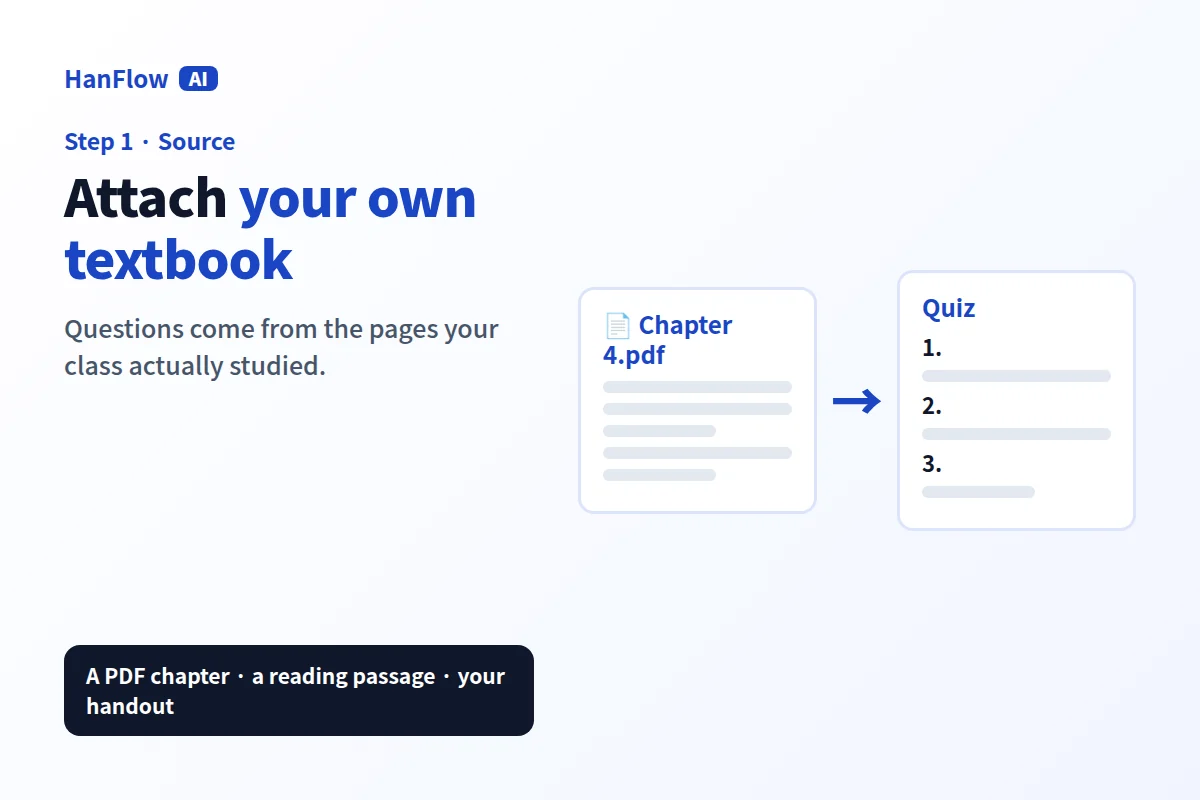
Upload the PDF chapter, the reading passage, or the textbook pages your students worked through. The AI draws questions from that content instead of improvising. This keeps the assessment aligned with instruction. If you assigned pages 42–58 of a biology textbook, those pages — not a generic biology overview — become the question bank.
Choose question types, count, and difficulty
Not every quiz needs twenty multiple-choice items. A short formative check might be five questions. A unit review could be thirty, mixing formats to test different levels of understanding.
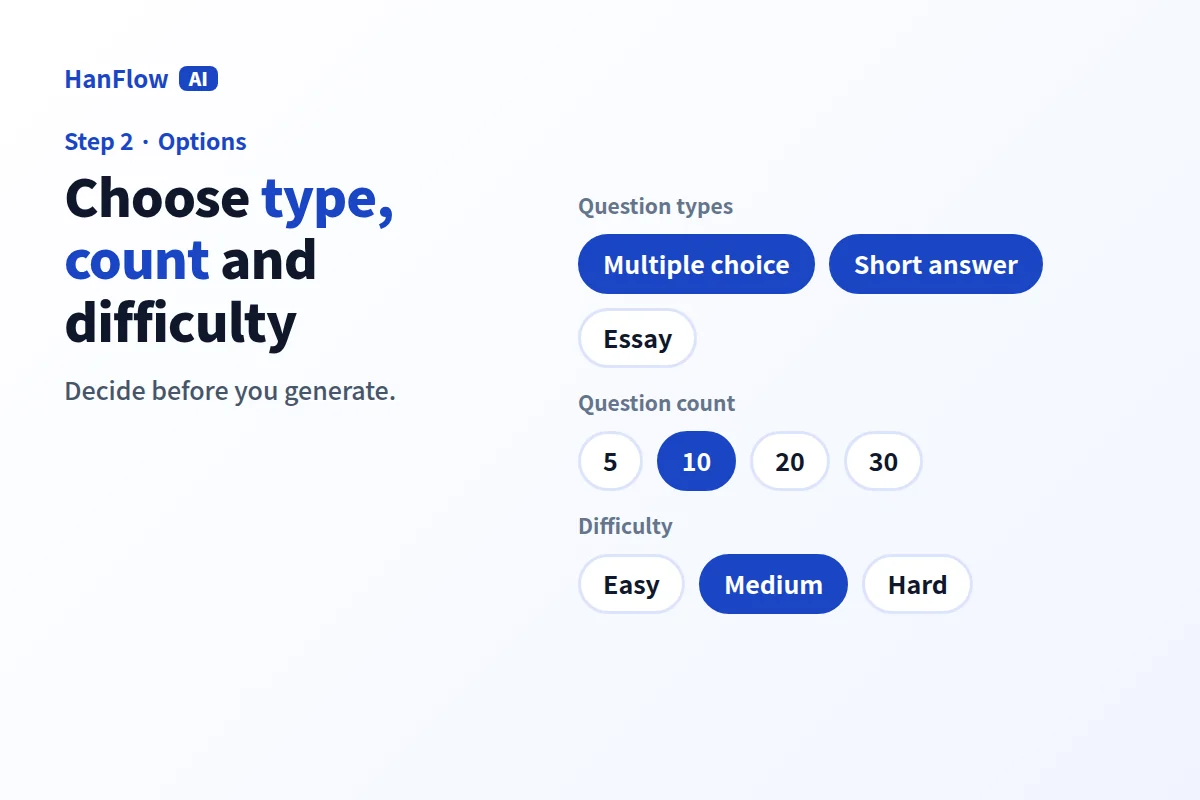
Decide before you generate. Set the question count — the tool described below allows 5 to 30 — and select types: multiple choice, short answer, or essay. Multiple choice checks recall and recognition. Short answer forces retrieval without cues. Essay questions test whether a student can construct an argument or explanation. A quiz that blends all three gives you a fuller picture than any single format. Adjusting difficulty within the same topic lets you reuse one source for both a quick check and a deeper review.
Put answers and explanations on separate pages
A quiz document with answers interleaved between questions is unusable in a classroom. Students see the next answer while reading the current question.
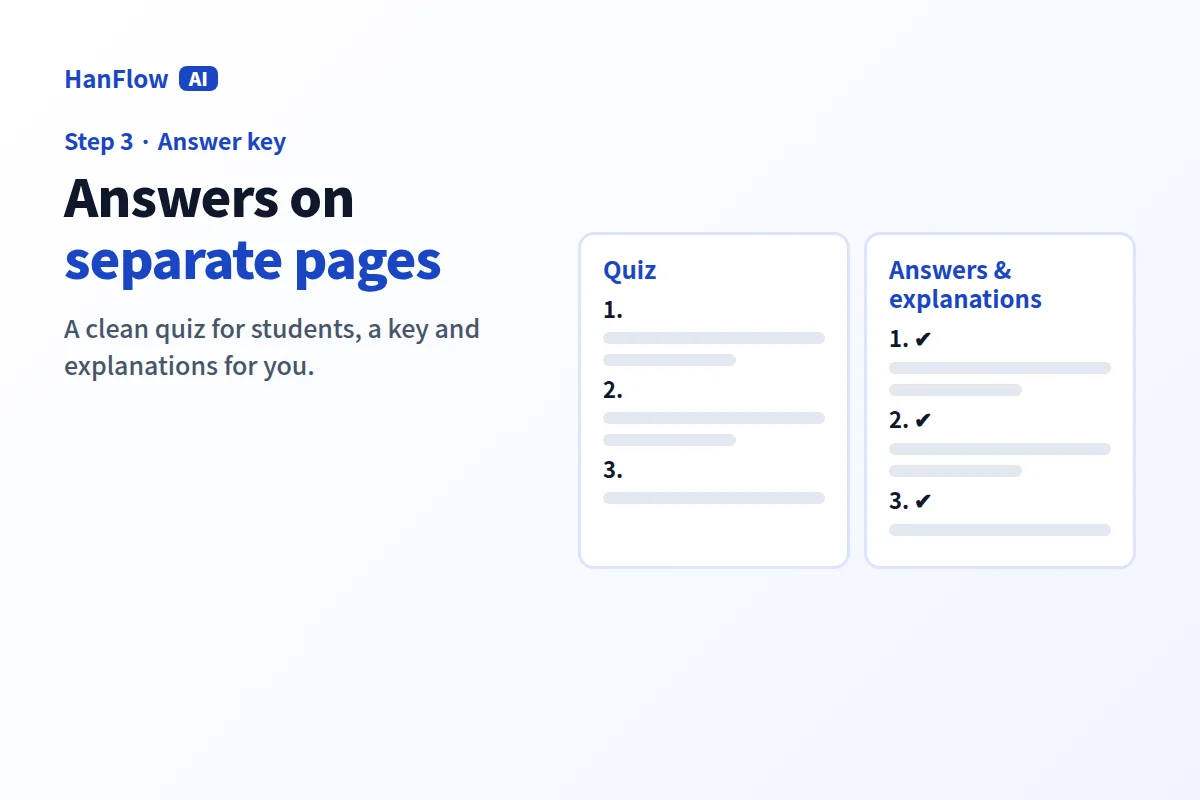
Keep answers and explanations on separate pages. This gives you two documents in one file: the quiz itself, clean and ready to print or share digitally, and a reference sheet you keep at your desk. The explanations matter as much as the answers — they tell you what reasoning the tool expected, and they become a study resource you can hand back after grading.
Check every question before you hand it out
AI-generated questions are a first draft, not a finished assessment. Errors happen: an answer key might mark the wrong option correct, a question might contain ambiguous wording, the difficulty might not match the intended level, or two questions might test the same point in slightly different words.
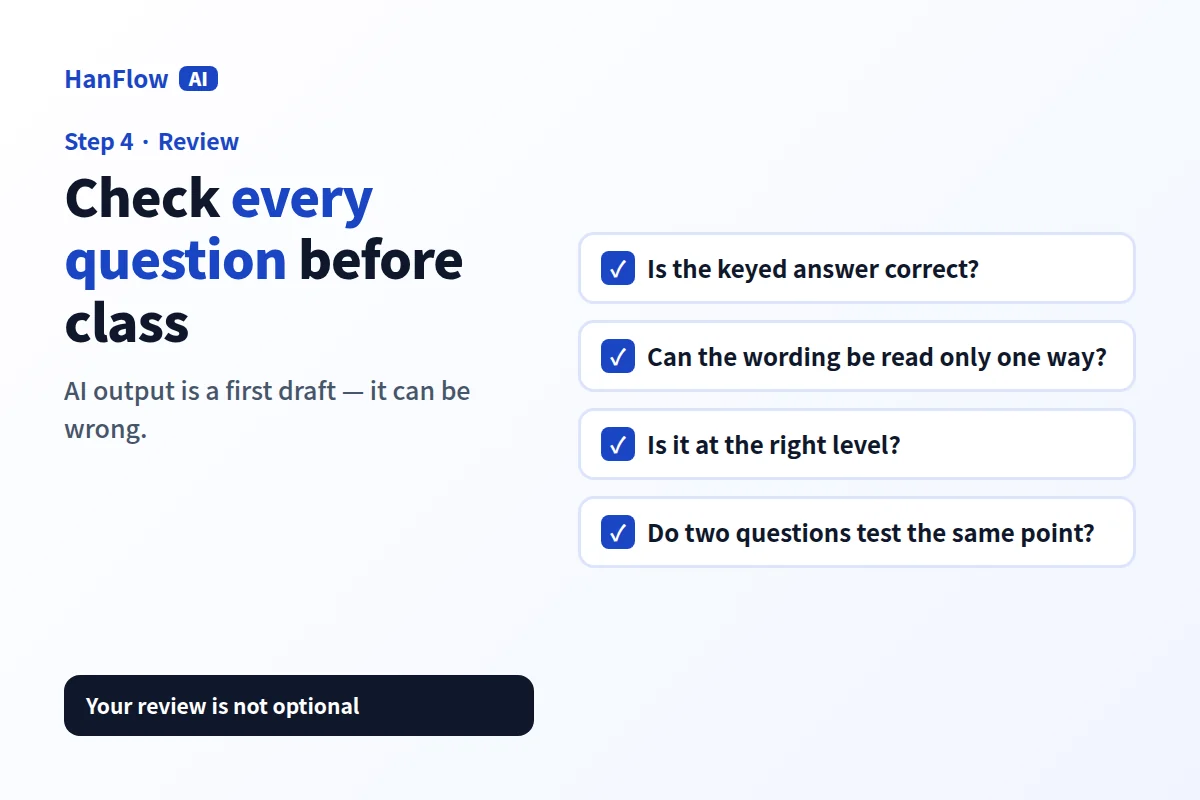
Read each question as if you were a student seeing it for the first time. Verify the keyed answer against the source material. Flag any item where two choices could reasonably be defended — that question needs rewriting or removal. Check that the set covers the breadth of the material rather than clustering around one subtopic. This review is not optional. It is the difference between a useful assessment and one that confuses or misleads.
Making a quiz with HanFlow AI
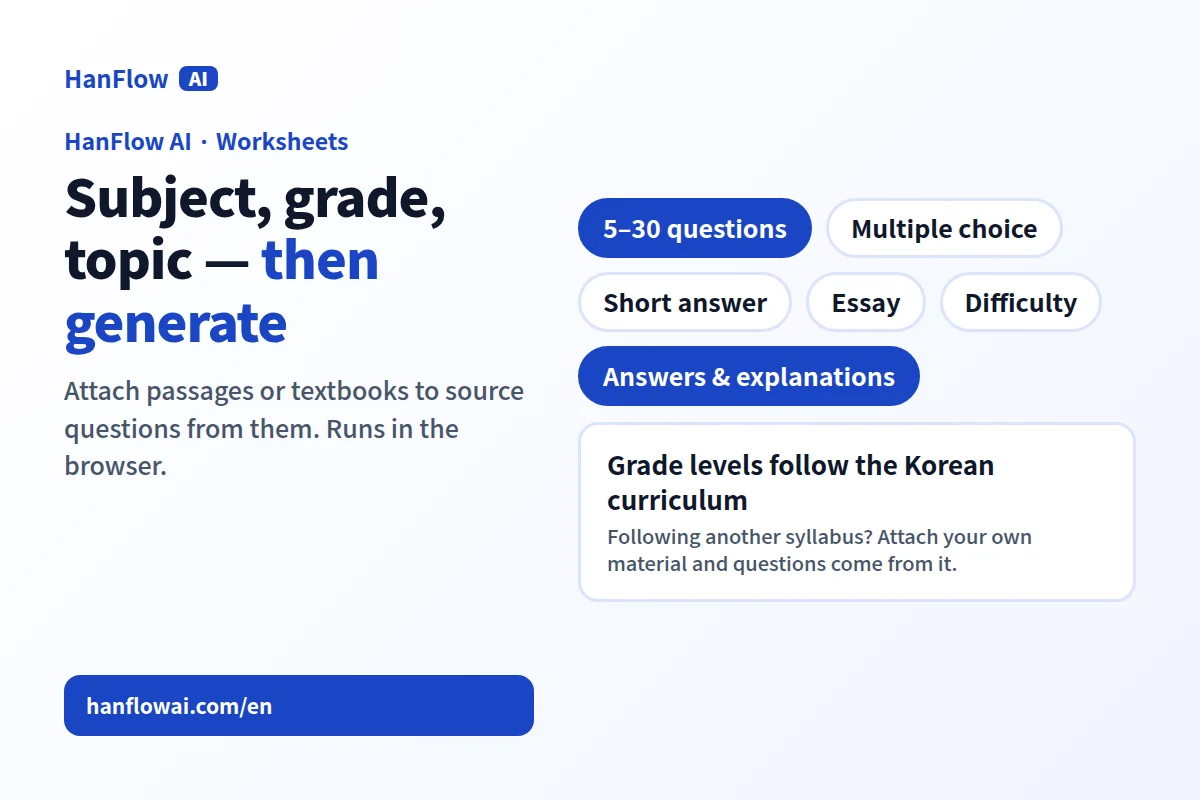
In HanFlow AI, the Worksheets tool lets you set a subject, grade, and topic to generate questions at curriculum level. The built-in grade levels follow the Korean curriculum, so if your class follows a different syllabus, attach your own material — a PDF chapter, a passage, or a textbook scan — and the questions will be sourced from that content instead. You control the question count (5 to 30), choose among multiple choice, short answer, and essay formats, and set the difficulty. Answers and explanations appear on separate pages. The output downloads as a document file, so you can edit questions, reorder items, or adjust wording in your own editor before printing. Everything runs in the browser with nothing to install.
As with any AI-generated content, treat the output as a draft. Compare each answer against your source material before distributing the quiz.
Frequently asked questions
Can AI make a quiz from my own PDF?
Yes. Upload the PDF — a textbook chapter, a reading passage, a set of notes — and the tool draws questions from that content. This keeps the quiz aligned with what students actually studied rather than relying on general knowledge.
How many questions should a quiz have?
It depends on the purpose. A quick formative check might need five questions. A unit review or practice test could run up to thirty. Match the count to the class time you have and the depth of understanding you want to measure.
Are AI-generated answers always correct?
No. AI can misinterpret source material, mark the wrong answer as correct, or produce explanations that contain errors. Always verify the answer key against the original text before using the quiz in class.
Can I edit the questions after generating?
Yes. Download the file and open it in your preferred editor. You can rewrite questions, change answer choices, reorder items, or remove anything that does not fit.